This blog post explains how to install an SSL certificate on a DirectAdmin control panel on any Linux distribution. SSL (Secure Socket Layer) is critical for securing and encrypting data between the server and the client. DirectAdmin is a fast, lightweight, and user-friendly web hosting control panel for managing servers and websites through a graphical interface. It allows users to do many things, but we will focus only on the SSL certificate in this post. If you need help, we will show you how to install an SSL certificate on a Linux VPS using DirectAdmin.
Technically, there are five main ways to install an SSL certificate on the latest DirectAdmin. These are available from the “SSL Certificates” area in the control panel. All of them will be explained in the next paragraphs.
Table of Contents
1. Install a Free SSL certificate from ACME Provider
Let’s Encrypt or ZeroSSL in DirectAdmin provides free, automated, and trusted SSL/TLS certificates recognized by all major browsers to secure websites. These SSL certificates are free, and installation is 1-click. Automatic renewals are enabled by default. With this method, you are able to install an SSL certificate on a Linux VPS without any manual setup.
To install a Free Let’s Encrypt SSL certificate or ZeroSSL in DirectAdmin, follow the steps below:
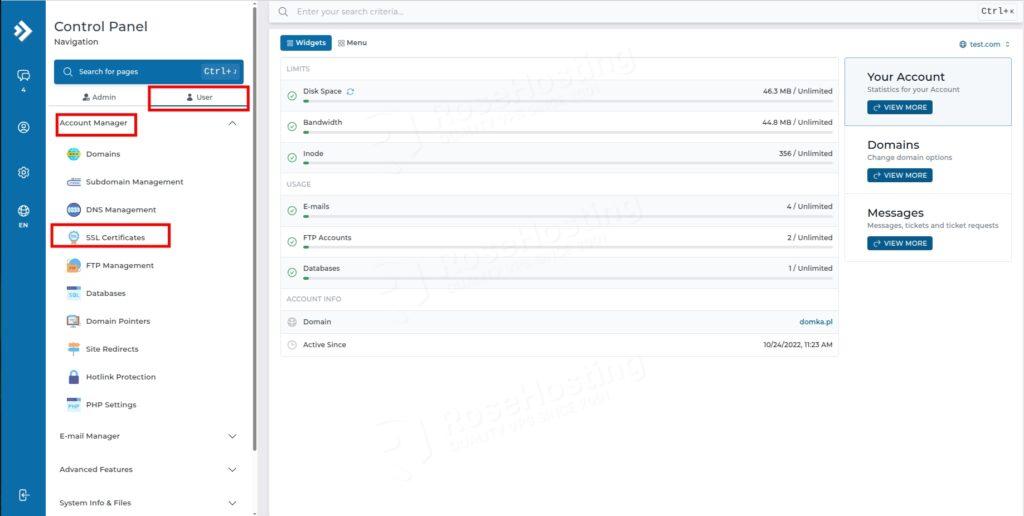
Log in to the DirectAdmin control panel as a user or an admin and then switch to the user level. Navigate to the Account Manager section, then click on SSL Certificates:
From the SSL Certificates tab, select the Get automatic certificate from ACME Provider. Then select Free Let’s Encrypt OR ZeroSSL, select the certificate Entries, and click on the green Save button:
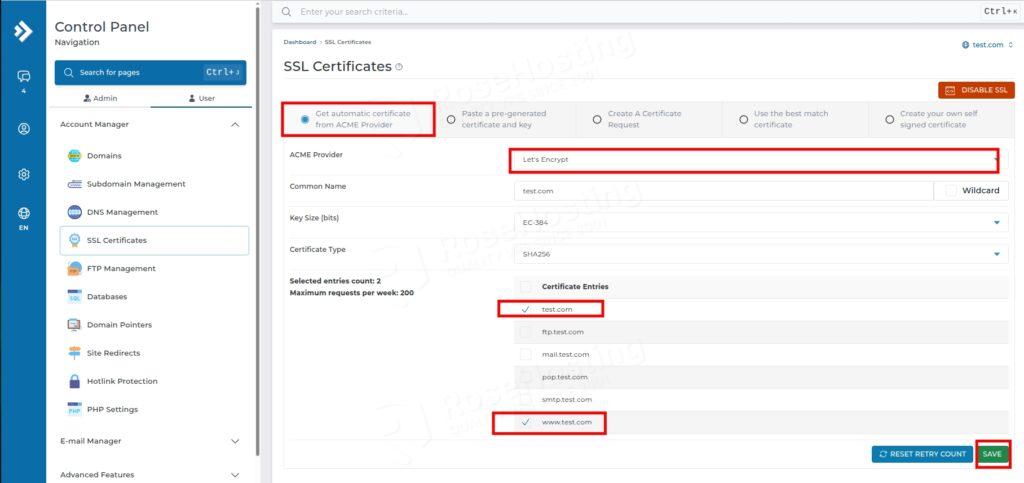
Optionally, there is also a Force SSL with https redirect checkbox, which can be seen in the screenshot as well. You can check it if you want to automatically redirect traffic from HTTP to HTTPS.
Once you click on the Save button, DirectAdmin will start the process. It will handle the certificate signing request (CSR) and validation automatically.
2. Install Pre-Generated Certificate and Key
Installing a pre-generated SSL certificate is only possible if we have the private key, the SSL certificate file, and the CA bundle files. DirectAdmin no longer requires the CA bundle files; only the key and certificate are required. To install the pre-generated SSL (paid certificate or moved away from another server), we just need to paste the key and the SSL certificate. To do that, we need to click on the Paste a pre-generated certificate and key tab now. This tab is next to the Automatic from ACME provider( User Level -> Account Manager -> SSL Certificates):
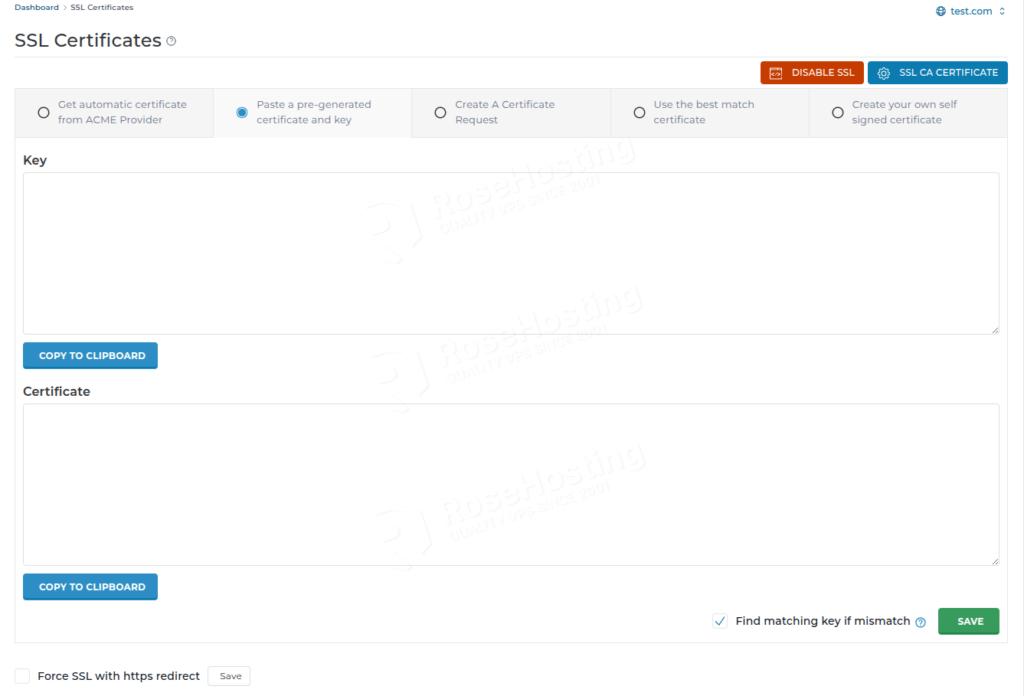
It is very simple: we will paste the key and the certificate into the inputs, respectively. Then select Force SSL with https redirect now. For those who want to install an SSL certificate on a Linux VPS using a certificate purchased elsewhere, this method is ideal.
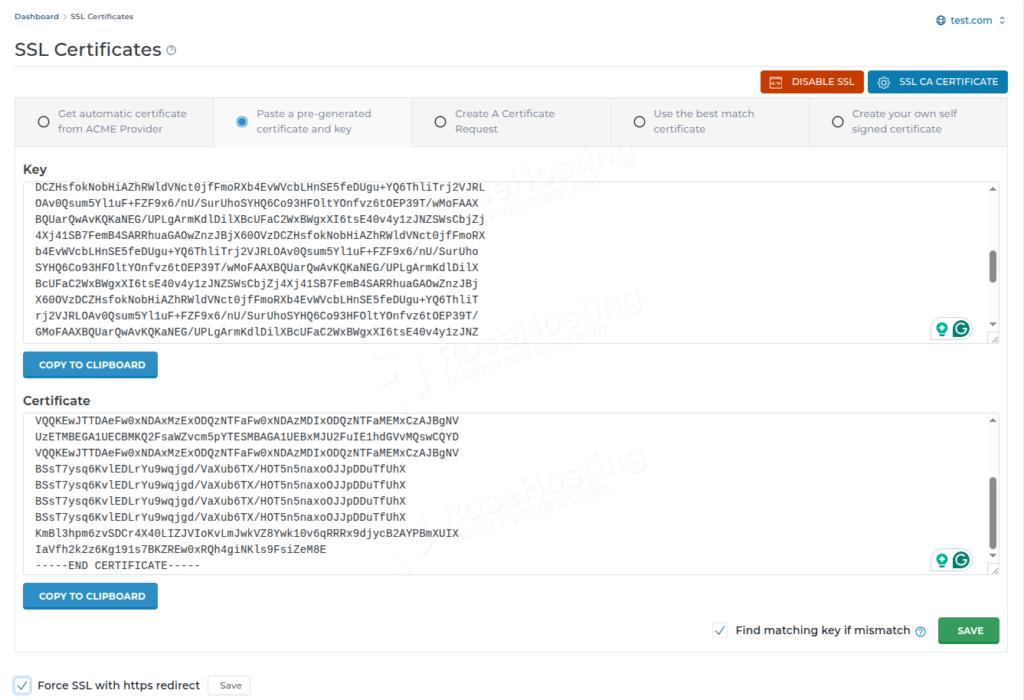
Once pasted, click the Save button to install the SSL certificate.
3. Create a Certificate Request (CSR)
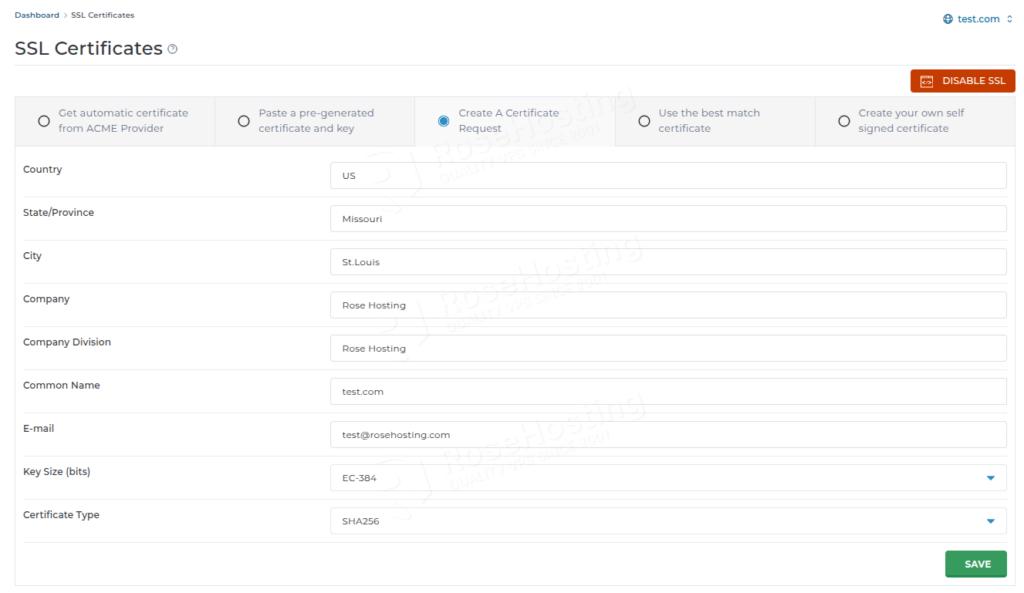
In the SSL certificates section, there is an option to submit a CSR (Certificate Signing Request) if you have not yet purchased a certificate. You can do this under the Create A Certificate Request tab by entering the company and domain information. Once the information is filled in, and you hit the Save button, a private key will be generated. You need to save it for later. Then submit this CSR to a Certificate Authority (CA). Upon receiving the certificate, use the second method explained above to install it. The CSR option is essential whenever you need to install an SSL certificate on a Linux VPS and want to use a certificate from a Certificate Authority.
4. Use the Best Match Certificate
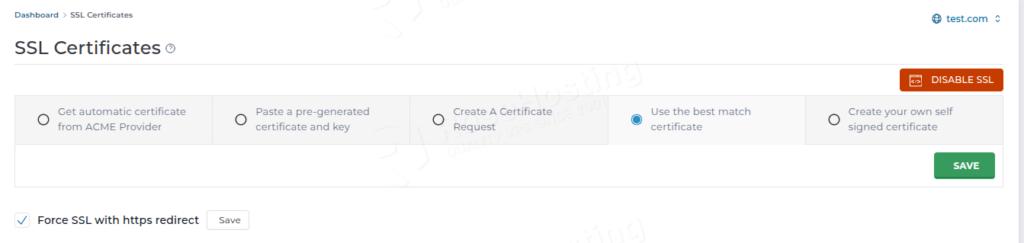
The “best match” certificate in DirectAdmin refers to using the server’s default, automatically assigned, or most compatible SSL certificate—often a Let’s Encrypt or ZeroSSL certificate. This option was formerly known as “Use the server’s certificate” and ensures the domain uses a trusted certificate automatically managed by DirectAdmin. This is ideal for server hostnames. For quick deployment, you can simply let DirectAdmin install an SSL certificate on a Linux VPS using its best-match feature.
5. Create a self-signed certificate
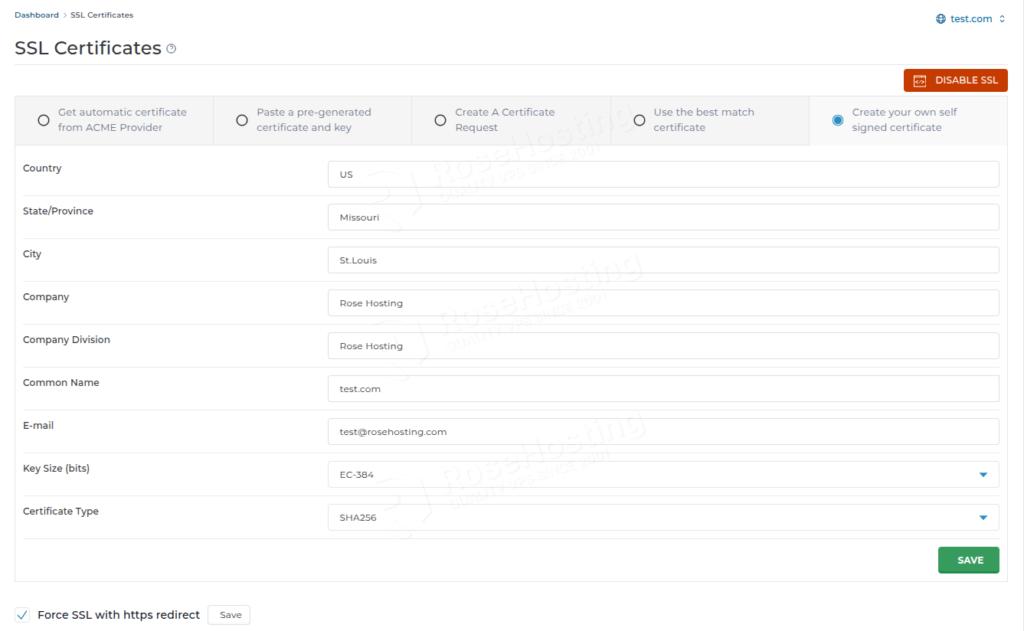
This option creates a self-signed certificate, which is useful for development or internal purposes. The self-signed certificates will show a “not secure” warning in browsers because they are not signed by a trusted Certificate Authority. The procedure for a self-signed certificate is the same as filling out the Certificate Request forms. In testing environments, it is common to install an SSL certificate on a Linux VPS with a self-signed certificate.
That’s it. You have learned how to install an SSL certificate on a Linux VPS with DirectAdmin.
Of course, you don’t have to install it yourself if you have difficulty and aren’t familiar with DirectAdmin or Linux. You can always contact our technical support. You only need to sign up for one of our NVMe Linux hosting VPS plans and submit a support ticket. We are available 24/7 and will take care of your request immediately.
If you liked this post about installing an SSL certificate on a Linux VPS with DirectAdmin, please share it with your friends or leave a comment down below.