
Odoo (formerly known as OpenERP) is a suite of open-source business applications. It is very easy to use and integrate. This software offers numerous advantages, including a large community, comprehensive and integrated modules, and easy installation. The range of the modules that can be installed in one application makes Odoo so popular these days. The recently released Odoo 19 presents a broad array of functional and technical enhancements. With this new release, Odoo continues to demonstrate its commitment to enhancing usability and streamlining business processes. In this article, we will guide you through the process of how to install Odoo 19 on Ubuntu 24.04 (Noble).
Table of Contents
Prerequisites
- An Ubuntu 24.04 VPS with at least 2GB of RAM
- SSH access with sudo privileges, or root access
Conventions
# – given commands should be executed with root privileges either directly as a root user or by use of sudo command
$ – given commands should be executed as a regular user
Step 1. Update the System
First of all, we need to log in to our Debian 10 VPS through SSH:
ssh master@IP_Address -p Port_numberReplace “master” with a user that has sudo privileges or root if necessary. Additionally, replace “IP_Address” and “Port_Number” with your server’s respective IP address and SSH port number. Next, let’s ensure we’re running Ubuntu 24.04. You can verify it with this command:
$ lsb_release -aYou should get this as the output:
No LSB modules are available.
Distributor ID:    Ubuntu
Description:    Ubuntu 24.04.3 LTS
Release:    24.04
Codename:    noble
Then, run the following command to make sure that all installed packages on the server are updated to their latest available versions:
$ sudo apt update Step 2. Add System User
We will install the Odoo instance under a system user account. So, in this step, we will create a new system account.
$ sudo useradd -md /opt/odoo19 -Urs /bin/bash odoo19Step 3. Install Dependencies
Since Odoo is built on Python, we need to install some dependencies to proceed with installing Odoo 19 on our Ubuntu 24.04 system. We can install them by running the command below.
$ sudo apt install build-essential wget git python3-pip python3-dev python3-venv python3-wheel libfreetype6-dev libxml2-dev libzip-dev libsasl2-dev python3-setuptools libjpeg-dev zlib1g-dev libpq-dev libxslt1-dev libldap2-dev libtiff5-dev libopenjp2-7-devStep 4. Install PostgreSQL
Odoo only supports PostgreSQL to store its data. Let’s execute the command below to install the PostgreSQL server on our Ubuntu 24.04 server.
$ sudo apt install postgresqlAfter the installation is finished, we can add a new PostgreSQL user for our Odoo 19, run this command:
$ sudo su - postgres -c "createuser -s odoo19"Step 5. Install Wkhtmltopdf
The package wkhtmltopdf is available in the Ubuntu repository, but it is not the patched version. The patched QT version of wkhtmltopdf offers better compatibility and more features compared to the stock version typically found in default repositories. If you need reliable PDF generation with advanced CSS and JavaScript support, we need to install it this way.
$ cd /tmp
$ wget https://github.com/wkhtmltopdf/packaging/releases/download/0.12.6.1-2/wkhtmltox_0.12.6.1-2.jammy_amd64.deb
We downloaded the installation package file. Let’s install it now.
$ sudo apt install ./wkhtmltox_0.12.6.1-2.jammy_amd64.debOnce installed, you can check its version by running this command
$ wkhtmltopdf --versionYou will see an output like this:
wkhtmltopdf 0.12.6.1 (with patched qt)Step 6. Install Odoo
On an Ubuntu 24.04 machine, we can install Odoo using the default Ubuntu repository, but this will install Odoo version 16. In this article, we will install Odoo 19 under a Python virtual environment. We created a system user earlier in this article, let’s switch to system user ‘odoo19’ then install Odoo under that username.
$ sudo su - odoo19The command above should bring you to /opt/odoo19 and log you in as user ‘odoo19’. Now, download Odoo 19 from GitHub.
$ git clone https://www.github.com/odoo/odoo --depth 1 --branch 19.0 odoo19Odoo 19 has been cloned to the /opt/odoo19/odoo19 directory. Now, let’s create a Python virtual environment. With a Python virtual environment, we can install multiple Odoo on a single machine.
Execute the following command to create a new Python virtual environment.
$ python3 -m venv odoo19-venvThe virtual environment is now installed; it is time to activate it by running this command.
$ source odoo19-venv/bin/activateOnce executed, your shell prompt would look like this:
(odoo19-venv) odoo19@ubuntu22:~$Next, let’s install Odoo
(odoo19-venv) odoo19@ubuntu22:~$ pip3 install wheel
(odoo19-venv) odoo19@ubuntu22:~$ pip3 install -r odoo19/requirements.txt
Once the Odoo installation is completed, we can create a new directory to store our custom Odoo addons.
(odoo19-venv) odoo19@ubuntu22:~$ deactivateIt is time to create a new folder or directory to store our custom addons.
$ mkdir /opt/odoo19/odoo19/custom-addonsNow, exit from user ‘odoo19’ and create the Odoo configuration file.
$ exit$ sudo nano /etc/odoo19.confPaste the following contents into the file.
[options]
admin_passwd = m0d1fyth15
db_user = odoo19
db_password = Fals
addons_path = /opt/odoo19/odoo19/addons,/opt/odoo19/odoo19/custom-addons
http_port = 8069
Ensure that you modify the value of the admin_passwd key above to a strong password. This is your Odoo master password; you need it to create or delete databases.
Step 7. Create Odoo Systemd Unit file
In this step, we will create a systemd unit file, which is required to start/stop/restart Odoo.
$ sudo nano /etc/systemd/system/odoo19.servicePaste the following content into the systemd unit file above.
[Unit]
Description=odoo19
Requires=postgresql.service
After=network.target postgresql.service

[Service]
Type=simple
SyslogIdentifier=odoo19
PermissionsStartOnly=true
User=odoo19
Group=odoo19
ExecStart=/opt/odoo19/odoo19-venv/bin/python3 /opt/odoo19/odoo19/odoo-bin -c /etc/odoo19.conf
StandardOutput=journal+console

[Install]
WantedBy=multi-user.target
That’s it. We can now reload systemd and run Odoo.
$ sudo systemctl daemon-reload
$ sudo systemctl start odoo19
Check if Odoo is starting by running this command:
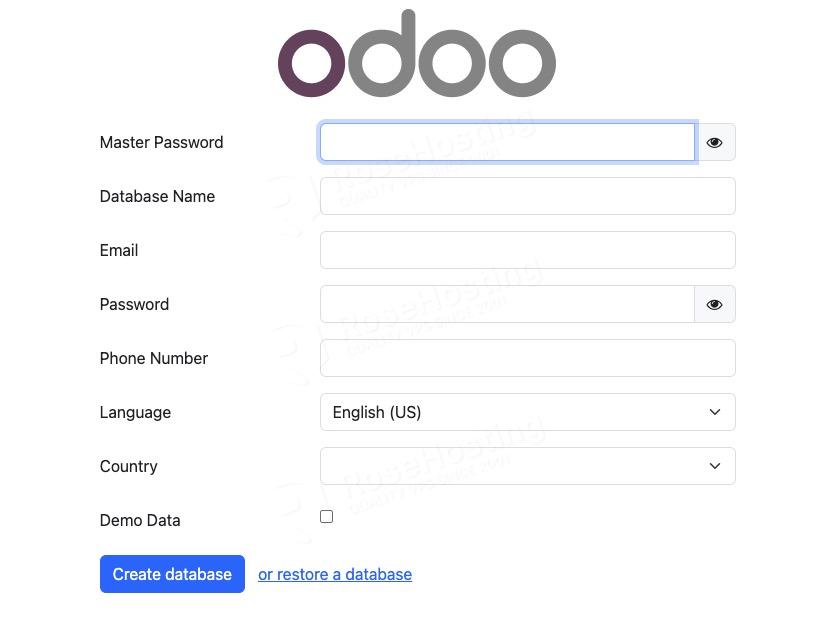
$ sudo systemctl status odoo19Open your web browser and navigate to http://YOUR_SERVER_IP_ADDRESS:8069. You will see the Odoo page.
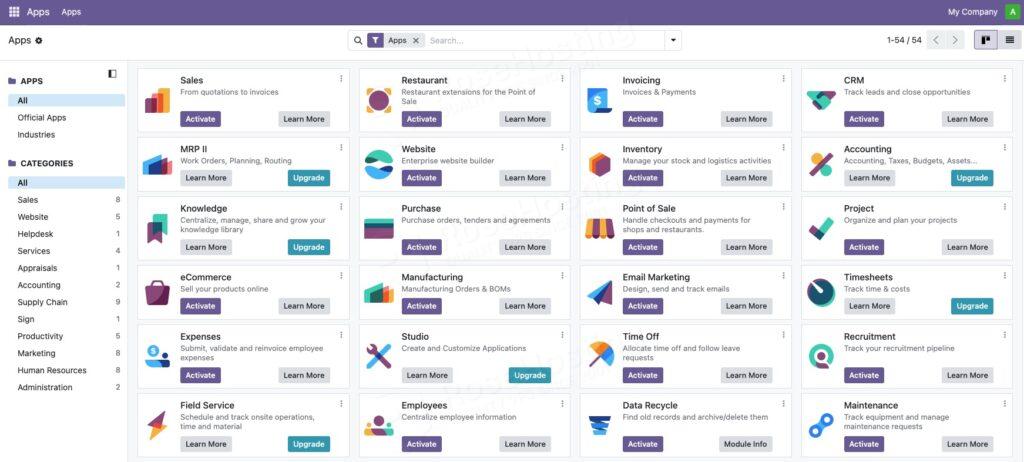
After a new database is created, you will be brought to the backend.
Step 8. Configure Reverse Proxy
To access Odoo using a domain name, rather than typing the IP address and port number, a web server is required. In this tutorial, we will install and use Nginx. Run the following command to install it
$ sudo apt -y install nginxUpon installation, Nginx will automatically run. It is also configured to start automatically upon reboot.
Now, let’s create an Nginx server block for the domain name you will use for accessing Odoo. For example, we will use yourdomain.com
$ sudo nano /etc/nginx/sites-enabled/yourdomain.comInsert the following into that file
upstream odoo19 {
server 127.0.0.1:8069;
}

upstream odoochat {
 server 127.0.0.1:8072;
}

server {
listen 80;
server_name yourdomain.com;

access_log /var/log/nginx/odoo.access.log;
error_log /var/log/nginx/odoo.error.log;

proxy_buffers 16 64k;
proxy_buffer_size 128k;

location / {
proxy_pass http://odoo19;
proxy_next_upstream error timeout invalid_header http_500 http_502 http_503 http_504;
proxy_redirect off;

proxy_set_header Host $host;
proxy_set_header X-Real-IP $remote_addr;
proxy_set_header X-Forwarded-For $proxy_add_x_forwarded_for;
proxy_set_header X-Forwarded-Proto https;
}

location /longpolling {
 proxy_pass http://odoochat;
 }


location ~* /web/static/ {
proxy_cache_valid 200 60m;
proxy_buffering on;
expires 864000;
proxy_pass http://odoo19;
}
}
Save the file and restart the web server for the changes to take effect
$ sudo systemctl restart nginxNow you should be able to access Odoo with your domain name at http://yourdomain.com and start working on your project. For more information about Odoo 19, its features, and configuration, please check their official documentation. To secure your website using an SSL/TLS certificate, you can check out how to secure Nginx with Let’s Encrypt on Ubuntu 20.04.
Of course, you don’t have to install Odoo 19 on Ubuntu 24.04 if you use one of our Odoo VPS Hosting services, in which case you can simply ask our expert Linux admins to install Odoo 19 on Ubuntu 24.04 for you. They are available 24×7 and will take care of your request immediately. Managing Odoo instances is not just about the installation; we can help you optimize your Odoo installation if you have an active service with us.
PS. If you liked this post on installing Odoo 19 on Ubuntu 24.04, please share it with your friends on the social networks using the buttons below or simply leave a comment in the comments section. Thanks.
Hello!
You’ve forgotten to set password for newly created odoo19 user, thus you will encounter “Acess denied” error with connection to PostgreSQL database.
Why you removed this step in current tutorial? It was there in place for the previous ones.
It does not require a password, for the installation process. But if it requires on your end then you can easily set a password with the following command:
passwd odoo19
And enter password twice for your “odoo19” user.