
OpenClaw is an autonomous AI agent framework that runs autonomously on the user’s infrastructure. This software acts as a bridge between large language models and your everyday digital devices. The system doesn’t store your conversation data on any third-party servers. The software supports popular language models such as Anthropic Claude, OpenAI GPT-4, and Google Gemini. You can even connect OpenClaw to local models through the Ollama platform’s easy integration. This allows the assistant to continue working without relying on an internet connection or external servers. In this article, we will show you how to install OpenClaw on a Debian 13 machine.
Table of Contents
Prerequisites
- A Debian 13 server
- SSH root access, or a user with sudo privileges
Conventions
# – given commands should be executed with root privileges either directly as a root user or by use of sudo command
$ – given commands should be executed as a regular user
Step 1. Update the System
First of all, we need to log in to our Ubuntu 26.04 VPS through SSH:
ssh root@IP_Address -p Port_numberReplace “root” with a user that has sudo privileges. Additionally, replace “IP_Address” and “Port_Number” with your server’s respective IP address and SSH port number. Next, let’s make sure that we’re on Debian 13. You can verify it with this command:

# lsb_release -aYou should get this as the output:
No LSB modules are available.
Distributor ID: Debian
Description:  Debian GNU/Linux 13 (trixie)
Release:  13
Codename: trixie
Then, run the following command to make sure that all installed packages on the server are updated to their latest available versions:
# apt update That’s it, the system package information should be updated now.
Step 2. Install Dependencies
Almost every package we install relies on other packages to run properly or to enable installation. Before proceeding with the other steps, we need to install the dependencies.
# apt install ca-certificates curl gnupg git sudoStep 3. Add a System User
Let’s create a new system user called ‘master’, run this command:
# /usr/sbin/adduser masterYou will be prompted to create a password. Make sure to use a strong password when prompted.
Step 4. Add User to Sudoer
On Debian systems, administrative privileges are typically granted by adding users to the sudo group. To give a regular user full sudo access (i.e., the ability to run commands as root with sudo), add them to the sudo group using one of these commands:
# /usr/sbin/usermod -aG sudo masterStep 5. Install Docker
There are several methods to install Docker on a Debian 13 system. In this step, we will install Docker Engine from Docker’s APT repository. This is by far the best and most recommended way to install Docker because it lets us update it easily. Before installing Docker Engine on a new host machine for the first time, you need to configure the Docker APT repository. Then you can install and update Docker from the repository.
Run these commands to add and configure Docker’s APT repository.
# install -m 0755 -d /etc/apt/keyrings
# curl -fsSL https://download.docker.com/linux/debian/gpg | gpg --dearmor -o /etc/apt/keyrings/docker.gpg
# chmod a+r /etc/apt/keyrings/docker.gpg
Then, add Docker’s APT repository to the APT source.
echo \
  "deb [arch="$(dpkg --print-architecture)" signed-by=/etc/apt/keyrings/docker.gpg] https://download.docker.com/linux/debian \
  "$(. /etc/os-release && echo "$VERSION_CODENAME")" stable" | \
   tee /etc/apt/sources.list.d/docker.list > /dev/null
Once added, update the package index files on the system.
# apt updateFinally, install the Docker packages.
# apt install docker-ce docker-ce-cli containerd.io docker-buildx-plugin docker-compose-pluginThat’s it, Docker has been installed on your Debian system. We can run the command below to verify the installation.
# docker versionIt will show you an output like this:
Client: Docker Engine - Community
 Version:           29.3.1
 API version:       1.54
 Go version:        go1.25.8
 Git commit:        c2be9cc
 Built:             Wed Mar 25 16:13:49 2026
 OS/Arch:           linux/amd64
 Context:           default

Server: Docker Engine - Community
 Engine:
  Version:          29.3.1
  API version:      1.54 (minimum version 1.40)
  Go version:       go1.25.8
  Git commit:       f78c987
  Built:            Wed Mar 25 16:13:49 2026
  OS/Arch:          linux/amd64
  Experimental:     false
 containerd:
  Version:          v2.2.2
  GitCommit:        301b2dac98f15c27117da5c8af12118a041a31d9
 runc:
  Version:          1.3.4
  GitCommit:        v1.3.4-0-gd6d73eb8
 docker-init:
  Version:          0.19.0
  GitCommit:        de40ad0
Step 6. Run Docker without Sudo
The Docker daemon binds to a Unix socket. When running the Docker command without sudo, you will get this error message:
permission denied while trying to connect to the docker API at unix:///var/run/docker.sockTo run Docker commands without sudo, we need to add the user we want to the Docker group:
# /usr/sbin/usermod -aG docker $USERFor example, let’s add the user “master” to the Docker group:
# /usr/sbin/usermod -aG docker masterNow you can switch to the ‘master’ user and run Docker without sudo.
Step 7. Install OpenClaw
In this step, we will install OpenClaw using Docker. This is the easiest method because we will use its installer script to install everything we need to get OpenClaw running on our server. Let’s switch to our new system user.
# su - masterNow, we can download and clone OpenClaw from GitHub
$ git clone https://github.com/openclaw/openclaw.gitOnce downloaded, we can navigate to the OpenClaw directory.
$ cd openclawIn this directory, there is a bash script to install everything. Let’s run the script.
$ ./docker-setup.shThis will take some time to complete.
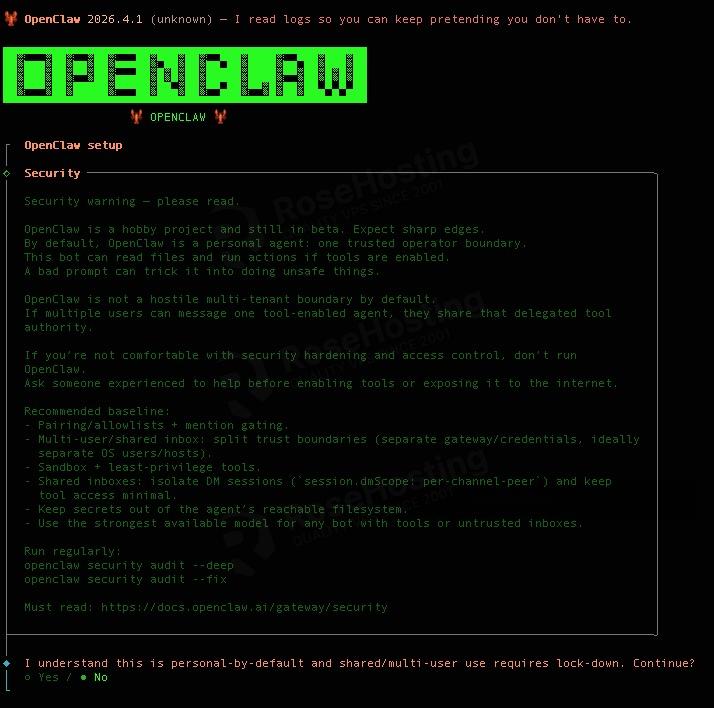
Choose YES by hitting your Y key, then ENTER
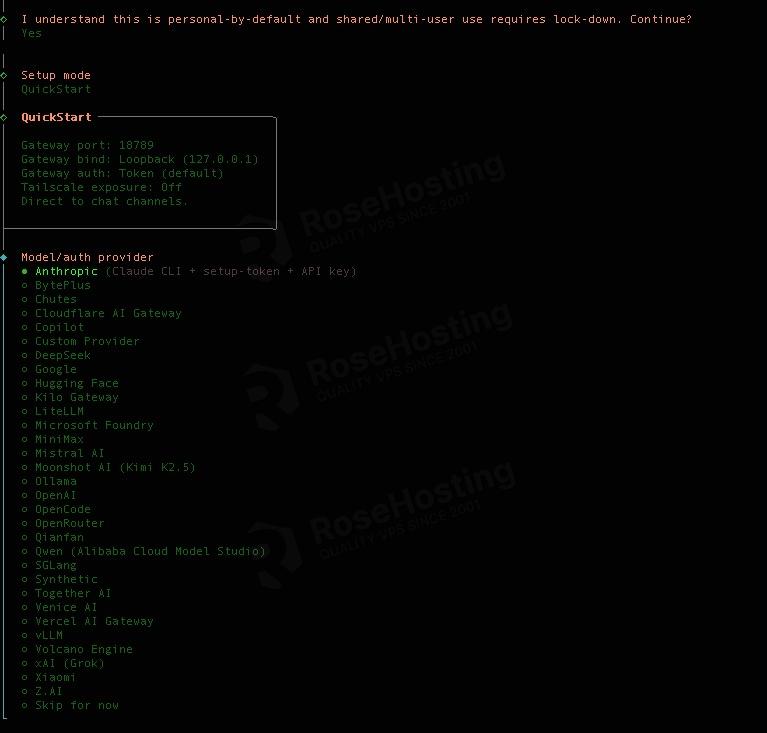
You can choose anything you like, or skip now.
After choosing the default model, you will see this message:
 Model check ───────────────────────────────────────────────────────────────────────────╮
│                                                                                          │
│  No auth configured for provider "anthropic". The agent may fail until credentials are   │
│  added. Run `openclaw models auth login --provider anthropic`, `openclaw configure`, or  │
│  set an API key env var.
You need to wait, then follow the next steps. Then, finally, you will see this message:
│  Web UI: http://127.0.0.1:18789/                                                                 │
│  Web UI (with token):                                                                            │
│  http://127.0.0.1:18789/#token=bb5aeb8a2a98d44c44698d506cd8e38e62b3c68a5360f40c9c68af89d3d826eb  │
│  Gateway WS: ws://127.0.0.1:18789                                                                │
│  Gateway: not detected (gateway closed (1006 abnormal closure (no close frame)): no close        │
│  reason)                                                                                         │
│  Docs: https://docs.openclaw.ai/web/control-ui                                                   │
│                                                                                                  │
├──────────────────────────────────────────────────────────────────────────╯
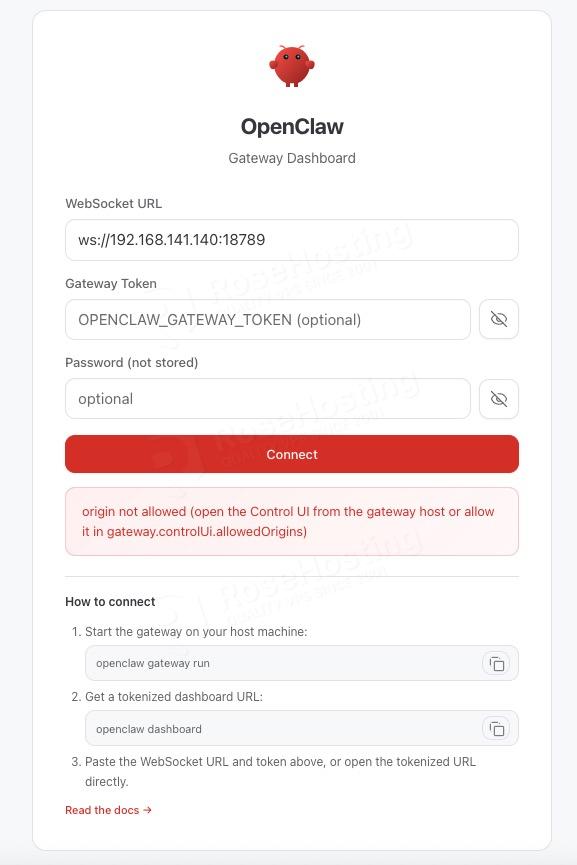
At this point, you can visit http://YOUR_SERVER_IP_ADDRESS:18789/ to view your gateway dashboard.
Conclusion
That’s it! You have successfully installed OpenClaw on Debian 13. Now, you can configure it to connect to your API KEY and start using it.
If you are one of our web hosting customers using our managed OpenClaw Hosting, you don’t need to install OpenClaw on Debian 13 yourself; our Linux administrators will set it up and configure it on the Debian 13 server for you. They are available 24×7 and will take care of your request immediately.
PS. If you liked this post on how to install OpenClaw on Debian 13, please share it with your friends or leave a comment below.