
In this blog post, we will show you how to install ReactJS on Debian 13 OS. ReactJS, or known simply as React, is an open-source JavaScript library for building user interfaces for single-page applications. ReactJS is used for Web and Mobile development, and also for server-side rendering to improve performance and search engine optimization. The key features of ReactJS are: component-based architecture, virtual DOM, JavaScript XML, data binding, hooks, etc.
Installing ReactJS on Debian 13 is straightforward and takes around 10 minutes. Let’s get started!
Table of Contents
Prerequisites
- A server with Debian 13 as the OS
- User privileges: root or non-root user with sudo privileges
Step 1. Update the System
Before we execute any command before the installation of ReactJS and its prerequisites, it is recommended first to update the system packages to their latest available versions:
sudo apt update -y && sudo apt upgrade -y
Step 2. Install NodeJS and NPM
Node.js is important for React.js because it serves two primary functions: as the essential runtime environment for development tools and the build process, and as a complementary technology for building the back-end of a full-stack application.
npm (Node Package Manager) is essential for React.js development because it simplifies installing, managing, and sharing the numerous third-party libraries, tools, and code packages that modern React projects rely on. Without npm, development would be slow, manual, and prone to version conflicts.
First, we need to install some dependencies:
apt install build-essential -y
Next, we will install NodeJS and NPM from the default Debian 13 repository:
sudo apt install nodejs npm -y
Once installed,d check the NodeJS and NPM versions with the following command:
node -v && npm -v
You should get the following output:
root@host:~# node -v && npm -v
v20.19.2
9.2.0
The version of NodeJS is v20.19.2, and the version of NPM is 9.2.0
Step 3. Install ReactJS
Once NodeJS and NPM are installed, we can proceed to create a React application. To do that, execute the following command:
sudo npm install -g create-react-app
Next, to develop a new React application, execute the following command:
create-react-app new-application
The application will start to install the packages, and after some time, the output should look like this:
root@host:~# create-react-app new-application
create-react-app is deprecated.

You can find a list of up-to-date React frameworks on react.dev
For more info see:https://react.dev/link/cra

This error message will only be shown once per install.

Creating a new React app in /root/new-application.

Installing packages. This might take a couple of minutes.
Installing react, react-dom, and react-scripts with cra-template...


added 1312 packages in 2m

266 packages are looking for funding
  run `npm fund` for details

Initialized a git repository.

Installing template dependencies using npm...

added 17 packages, and changed 1 package in 15s

266 packages are looking for funding
  run `npm fund` for details
Removing template package using npm...


removed 1 package, and audited 1329 packages in 11s

266 packages are looking for funding
  run `npm fund` for details

9 vulnerabilities (3 moderate, 6 high)

To address all issues (including breaking changes), run:
  npm audit fix --force

Run `npm audit` for details.

Created git commit.

Success! Created new-application at /root/new-application
Inside that directory, you can run several commands:

  npm start
    Starts the development server.

  npm run build
    Bundles the app into static files for production.

  npm test
    Starts the test runner.

  npm run eject
    Removes this tool and copies build dependencies, configuration files
    and scripts into the app directory. If you do this, you can’t go back!

We suggest that you begin by typing:

  cd new-application
  npm start

Happy hacking!
As you can see, we bolded the last lines of the production to see how to start the application after its creation:
  cd new-application

  npm start
After this command, the application will run on port:
Compiled successfully!

You can now view new-application in the browser.

  http://YourServerIPAddresshere:3000

Note that the development build is not optimized.
To create a production build, use npm run build.

webpack compiled successfully
The application is accessible at: http://YourServerIPAddressHere:3000
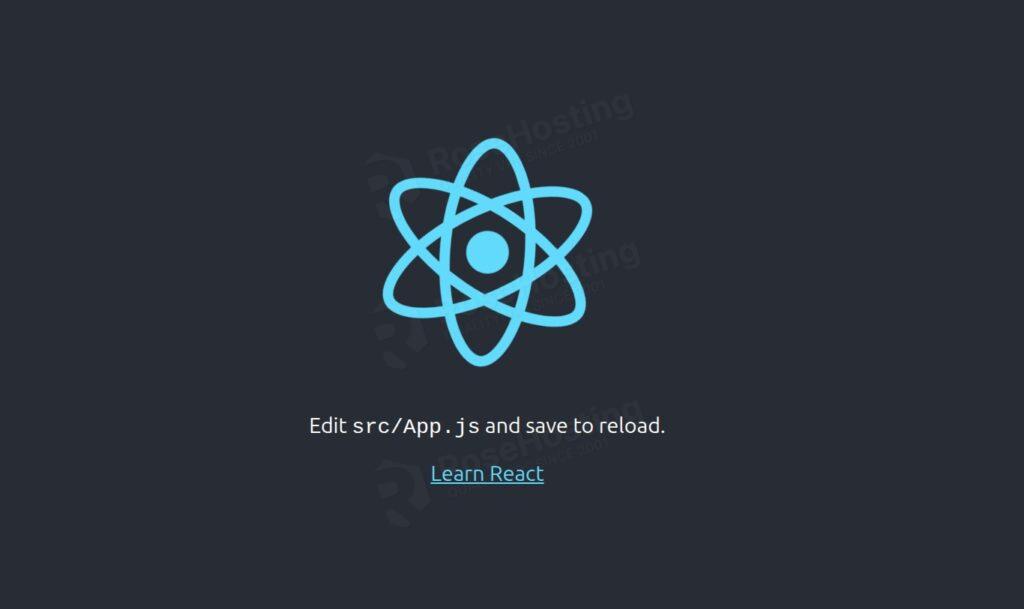
The application is now running in development mode. To run the application in production mode, you need to execute the following command:
npm run build
The output should look like this:
root@host:~/new-application# npm run build

> new-application@0.1.0 build
> react-scripts build

Creating an optimized production build...
Compiled successfully.

File sizes after gzip:

  60.96 kB  build/static/js/main.877bfe63.js
  1.77 kB   build/static/js/453.ca03b147.chunk.js
  515 B     build/static/css/main.f855e6bc.css

The project was built assuming it is hosted at /.
You can control this with the homepage field in your package.json.

The build folder is ready to be deployed.
You may serve it with a static server:

  npm install -g serve
  serve -s build

Find out more about deployment here:

  https://cra.link/deployment
Step 4. Create ReactJS service
Starting the application can be simplified with a service, and it can act like other Linux services for Apache, Nginx, MySQL, etc. To do that, first, we need to create a ReactJS service file:
sudo nano /etc/systemd/system/reactjs.service
Once opened, paste the following lines of code in the ReactJS service file:
[Unit]
Description=My React Application Service
After=network.target

[Service]
Type=simple
User=root
WorkingDirectory=/root/new-application
ExecStart=/usr/bin/npm start
Restart=on-failure

[Install]
WantedBy=multi-user.target
Please save the file and close it.
You should configure this file according to the application root directory and the user who has rights to it. In our case, we set the root user.
After that, we need to execute the following command:
sudo systemctl daemon-reload
If everything is OK and there are no errors, we can start and enable the ReactJS service:
sudo systemctl start reactjs && sudo systemctl enable reactjs
To check the status of the ReactJS application, you can use the following command:
sudo systemctl status reactjs
You should get the following output:
root@host:~/new-application# systemctl status reactjs
● reactjs.service - My React Application Service
     Loaded: loaded (/etc/systemd/system/reactjs.service; enabled; preset: enabled)
     Active: active (running) since Thu 2025-12-11 06:31:51 CST; 6min ago
 Invocation: 41e9f1f0120d46aaa750585462a50274
   Main PID: 155032 (npm start)
      Tasks: 30 (limit: 4640)
     Memory: 169.1M (peak: 250.9M)
        CPU: 13.985s
     CGroup: /system.slice/reactjs.service
             ├─155032 "npm start"
             ├─155045 sh -c "react-scripts start"
             ├─155046 node /root/new-application/node_modules/.bin/react-scripts start
             └─155053 /usr/bin/node /root/new-application/node_modules/react-scripts/scripts/start.js
That’s it. You successfully installed ReactJS on Debian 13 OS.
Of course, if you have difficulties and are unfamiliar with Linux, you don’t have to install ReactJS. You can always contact our technical support. You only need to sign up for one of our Linux VPS plans and submit a support ticket. We are available 24/7 and will address your request immediately.
If you liked this post about how to install ReactJS on Debian 13 OS, please share it with your friends or leave a comment below.