
In this tutorial, we will explain how to install WooCommerce on Ubuntu 26.04. WooCommerce is a free, open-source e-commerce plugin for WordPress that transforms any WordPress website into a functional online store. The key features of the WooCommerce plugin are that it is cost-effective because it is free to download and use, highly customizable with over 50,000 WordPress plugins, supports unlimited product types, and includes built-in tools such as payment gateways, shipping options, and inventory management. The most important thing about WooCommerce is that it integrates with WordPress.
Installing the WooCommerce plugin on a WordPress website is a straightforward process that may take a couple of minutes. Let’s get things done!
Table of Contents
Prerequisites
- A server running Ubuntu 26.04 OS
- LAMP/LEMP stack (Linux, Apache/NGINX, MySQL/MariaDB, PHP) installed.
- WordPress is installed and configured.
Before we continue with installing the WooCommerce plugin, ensure you have already installed and configured WordPress. This blog post does not cover the WordPress installation on Ubuntu 26.04; it focuses only on the WooCommerce installation.

Installing the WooCommerce plugin can be done in three ways, which are explained in the following paragraphs.
Install WooCommerce via the WordPress Admin Dashboard
The easiest method to install WooCommerce is through the WordPress dashboard.
Log in to your WordPress Dashboard as an administrator.
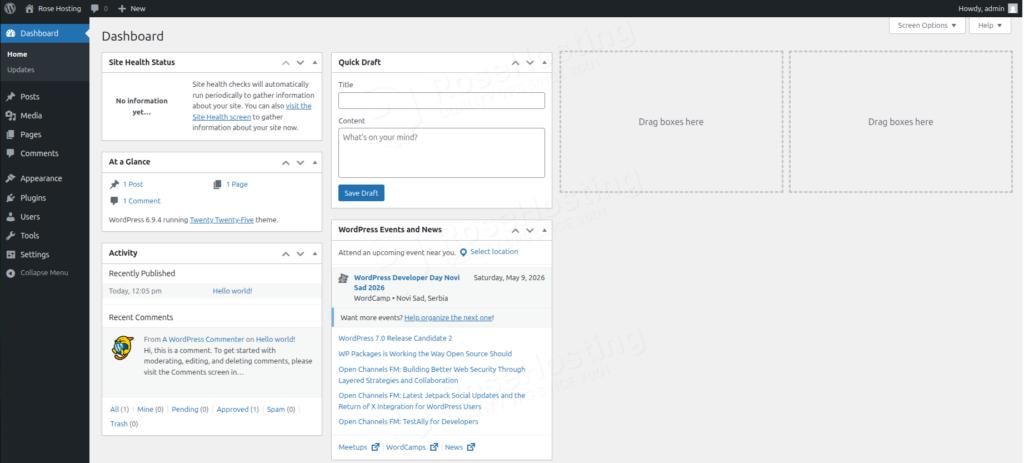
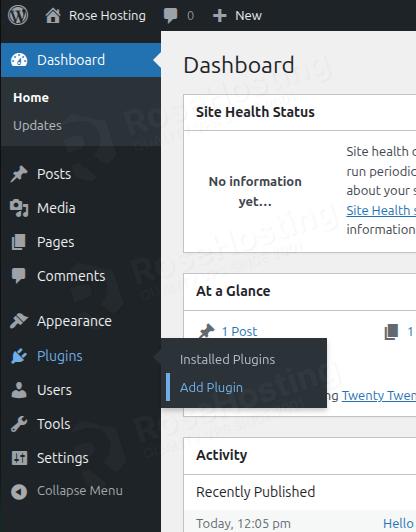
Navigate to Plugins > Add New Plugin:
In the search bar, type “WooCommerce”:

Locate “WooCommerce” in the results and click Install Now:
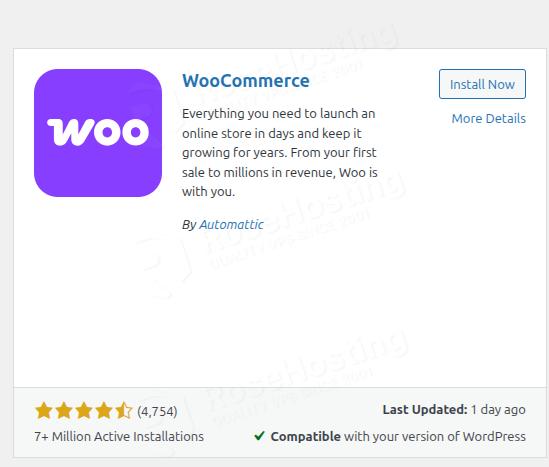
After the installation finishes, click Activate:
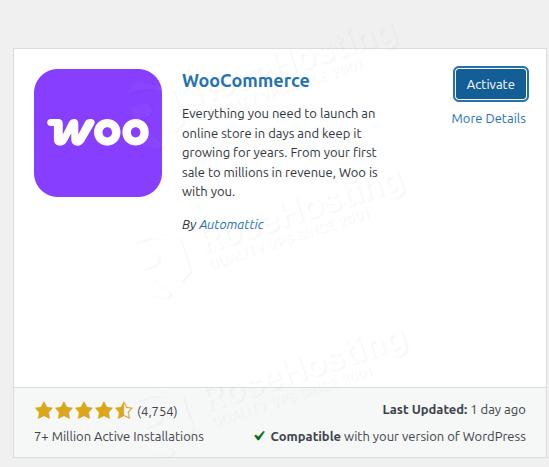
You should get the following output:
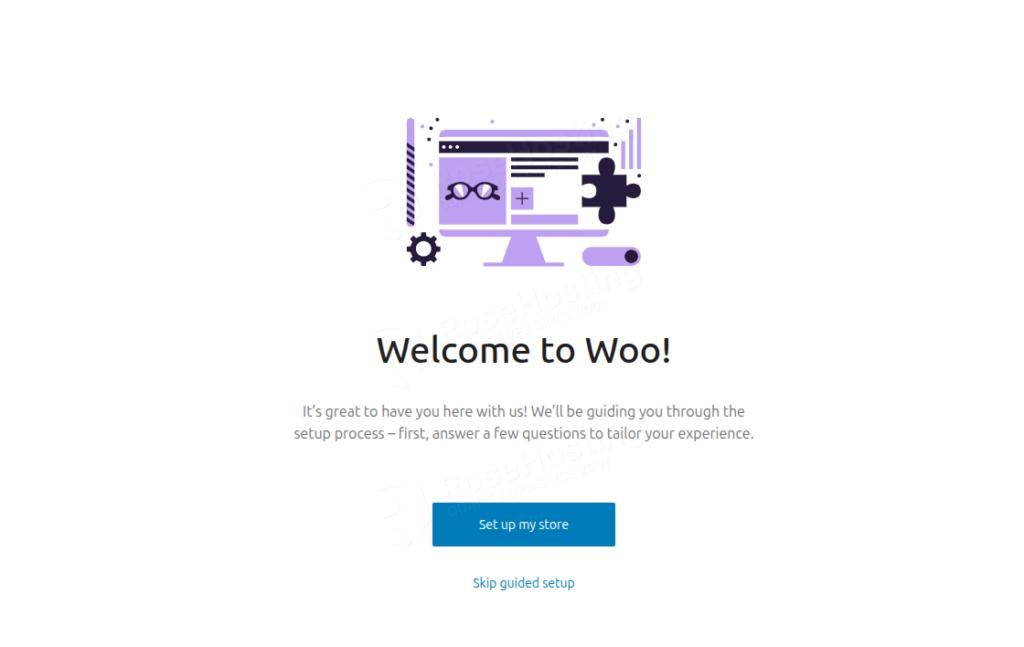
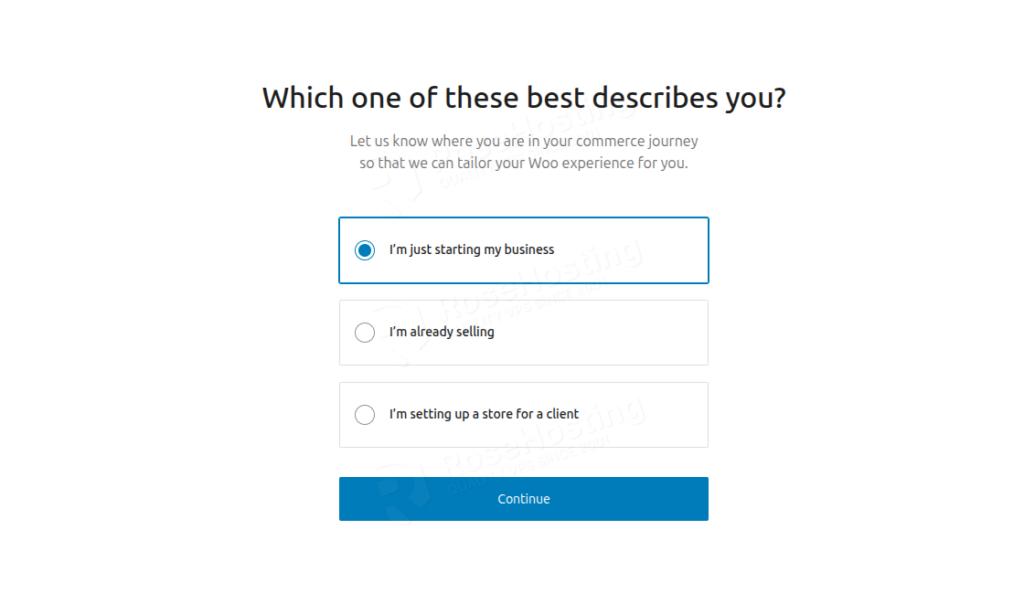
Next, click on “Set up my store,” and you’ll see three options to choose from. We will choose “I’m just starting my business”.
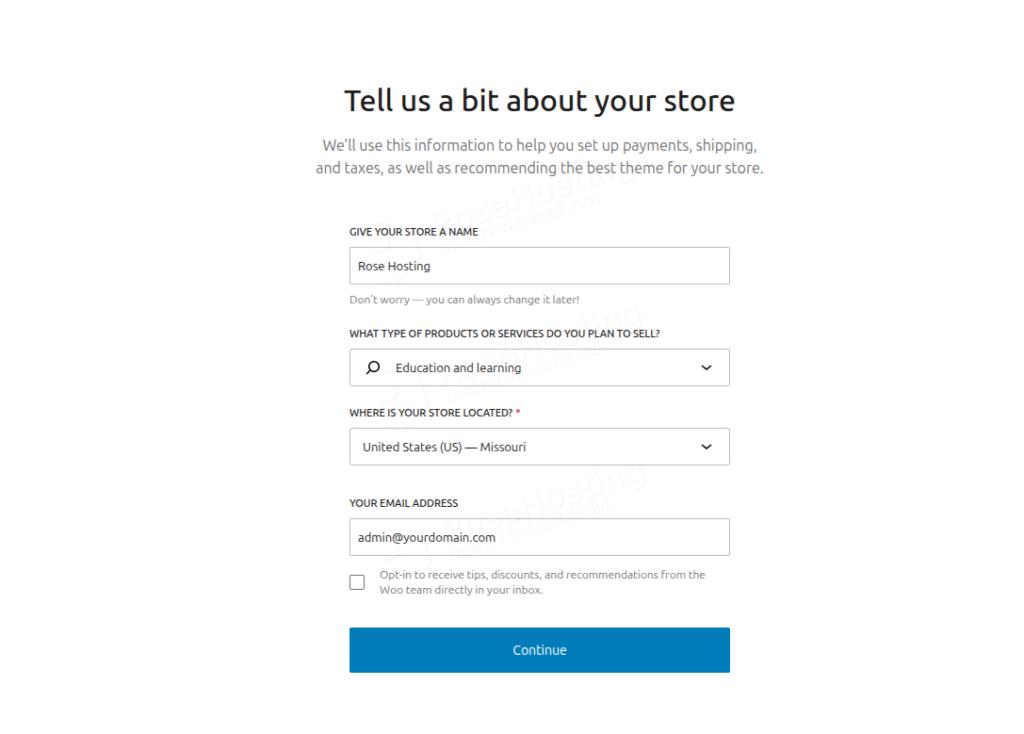
Next, we need to fill in the store information and what we will sell:
From the feature options, we will leave all unchecked:

The installation will start, and it will need a couple of seconds to finish:
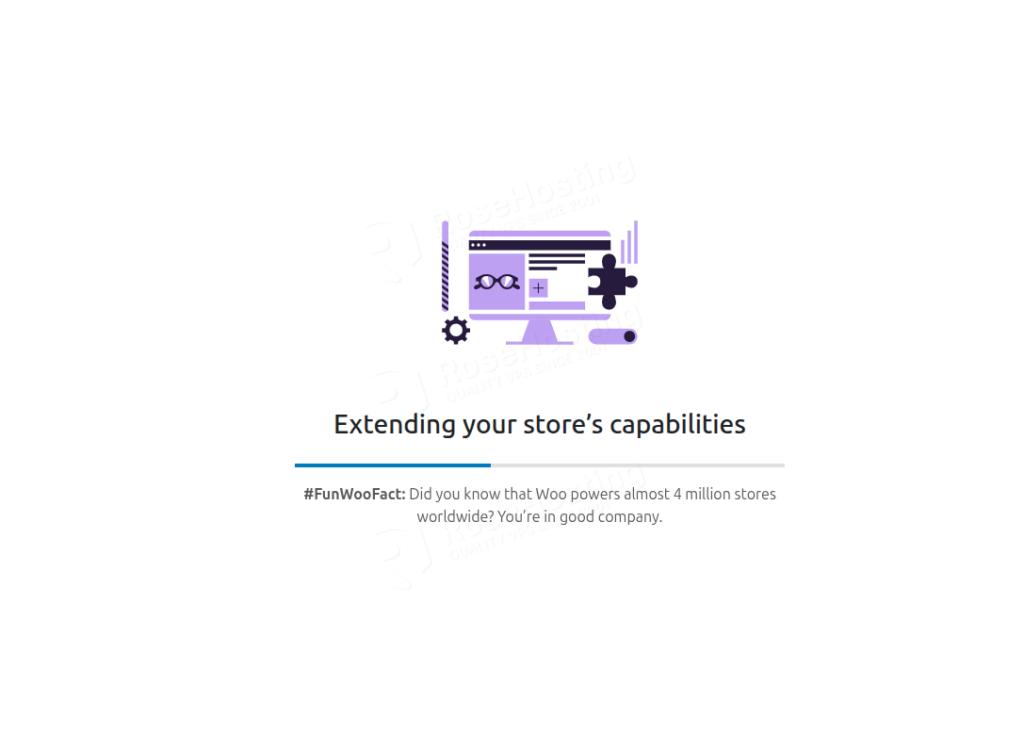
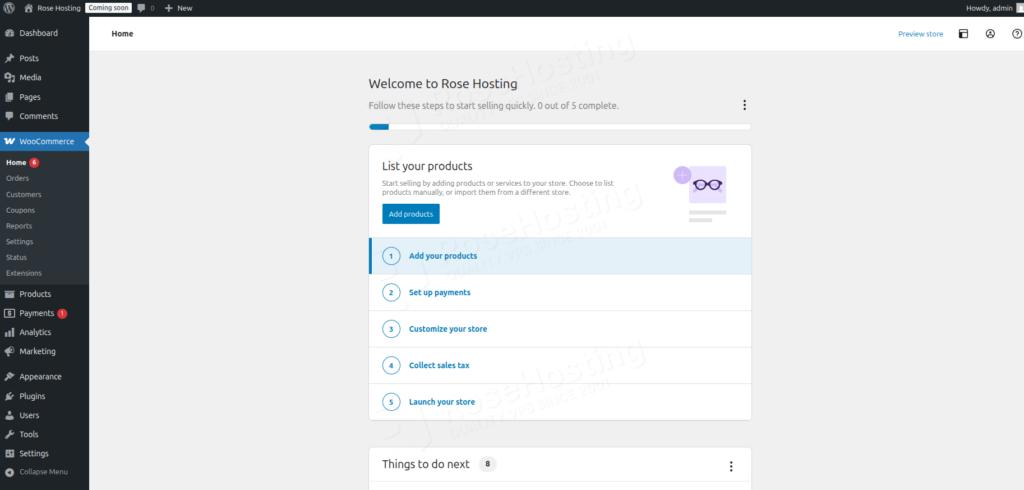
After its completion, you will be redirected to the WordPress admin dashboard, where you can proceed with WooCommerce configuration.
Install WooCommerce via SSH
If you prefer to install WooCommerce via the command line, follow these steps:
1. Navigate to the plugins directory
cd /var/www/html/wp-content/plugins/
2. Download WooCommerce
wget https://downloads.wordpress.org/plugin/woocommerce.latest-stable.zip
3. Unzip the file
unzip woocommerce.latest-stable.zip
4. Remove the zip file
rm woocommerce.latest-stable.zip
5. Set permissions:
chown -R www-data:www-data /var/www/html/wp-content/plugins/woocommerce
6. Activate the plugin in the WordPress Dashboard
Finally, you can adjust the path if your WordPress is installed elsewhere with a different user.
Install WooCommerce with WP-CLI
WP-CLI is the official command-line interface for WordPress, allowing users to manage their WordPress installations directly from a terminal without a web browser.
Before we can install WooCommerce, we need to install WP-CLI first.
curl -O https://raw.githubusercontent.com/wp-cli/builds/gh-pages/phar/wp-cli.phar

chmod +x wp-cli.phar

mv wp-cli.phar /usr/local/bin/wp

wp --info
To install WooCommerce using WP-CLI, you use the wp plugin install command, optionally adding the –activate flag to activate it immediately after installation.
wp plugin install woocommerce --activate
This command downloads, installs, and activates the plugin in one go.
That’s it. You successfully installed WooCommerce on Ubuntu 26.04 in three different ways.
Of course, you don’t have to install WooCommerce on Ubuntu 26.04 if you have difficulties and you are not familiar with Linux. You can always contact our technical support. You only need to sign up for one of our monthly management plans and submit a support ticket. We are available 24/7 and will take care of your request immediately.
If you liked this post about installing WooCommerce on Ubuntu 26.04, please share it with your friends or leave a comment down below.