
Uptime Kuma is an open-source, self-hosted monitoring tool; you can install it on your own server or VPS. With this application, we can manage website and service monitoring on a Linux VPS, including real-time availability and performance analysis for those services. Users can view and monitor the uptime of various services, such as HTTP(s), TCP, Ping, DNS records, and others. In this article, we will show you how to set up Uptime Kuma for website and service monitoring on Linux.
Table of Contents
Prerequisites
- A Linux server
- SSH root access or a regular system user with sudo privileges
Conventions
# – given commands should be executed with root privileges either directly as a root user or by use of sudo command
$ – given commands should be executed as a regular user
Step 1. Add a System User
Uptime Kuma will be started and managed by a new system user. Let’s create a new system user now.
# adduser kumaMake sure to create a strong password. Next, let’s give the user root privileges. In the Linux operating system, users who are members of the sudo group can run sudo commands.

On Ubuntu/Debian
# usermod -aG sudo kumaOn AlmaLinux/CentOS/RockyLinux, grant a user sudo privileges by adding them to the administrative wheel group
# usermod -aG wheel kumaOnce created and granted sudo privileges, we can log in as the new user ‘kuma’ and use this user to run commands and complete the Uptime Kuma installation.
# su - kumaStep 2. Install NodeJS and NPM
In this step, we will install NodeJS and npm through NodeJS repository to get the most recent version of it.
On Debian/Ubuntu:
$ curl -sL https://deb.nodesource.com/setup_lts.x | sudo -E bash -
$ sudo apt install nodejs -y
On AlmaLinux/CentOS/RockyLinux:
$ curl -sL https://deb.nodesource.com/setup_lts.x | sudo -E bash -
$ sudo dnf install -y nodejs
Step 3. Install MariaDB Server
Uptime Kuma supports MariaDB/MYSQL and SQLite. For a production website, MariaDB/MYSQL is recommended. Let’s install MariaDB now.
On Debian/Ubuntu:
$ sudo apt install mariadb-serverOn AlmaLinux/CentOS/RockyLinux:
$ sudo dnf install mariadb-serverMariaDB is installed and running. If it’s not running, we can start it using:
$ sudo systemctl start mariadbNext, let’s create a database, user, and its password.
$ sudo mariadbOr
$ sudo mysqlYou will be brought to the MariaDB/MYSQL shell; while in the shell, we need to run these commands:
MariaDB [(none)]> CREATE USER 'kuma'@'localhost' IDENTIFIED BY 'm0d1fyth15';
MariaDB [(none)]> CREATE DATABASE kuma;
MariaDB [(none)]> GRANT ALL PRIVILEGES ON kuma.* TO 'kuma'@'localhost';
MariaDB [(none)]> FLUSH PRIVILEGES;
MariaDB [(none)]> \q
Step 4. Install Uptime Kuma
There are several methods for installing Uptime Kuma. In this article, we will show you how to install it manually. We can install it by downloading it from GitHub using git.
$ sudo apt install gitNow that Git, NodeJS and NPM are installed, we can install Vite.
$ npm install viteNext, we can clone Uptime Kuma from its GitHub repository.
$ git clone https://github.com/louislam/uptime-kuma.git
$ cd uptime-kuma
It’s time to run the installation using the NPM package manager of Nodejs.
$ npm run setupIf everything is okay, now we can run the application
$ npm startYou will see this:
> uptime-kuma@2.4.0 start
> npm run start-server


> uptime-kuma@2.4.0 start-server
> node server/server.js

Welcome to Uptime Kuma
Your Node.js version: 24.18.0
2026-07-19T02:41:09-05:00 [SERVER] INFO: Env: production
2026-07-19T02:41:10-05:00 [SERVER] INFO: Uptime Kuma Version: 2.4.0
2026-07-19T02:41:10-05:00 [SERVER] INFO: Loading modules
2026-07-19T02:41:13-05:00 [SERVER] INFO: Creating express and socket.io instance
2026-07-19T02:41:13-05:00 [SERVER] INFO: Server Type: HTTP
2026-07-19T02:41:14-05:00 [SERVER] INFO: Data Dir: ./data/
2026-07-19T02:41:14-05:00 [SETUP-DATABASE] INFO: db-config.json is not found or invalid: ENOENT: no such file or directory, open 'data/db-config.json'
2026-07-19T02:41:14-05:00 [SETUP-DATABASE] INFO: Starting Setup Database
2026-07-19T02:41:14-05:00 [SETUP-DATABASE] INFO: Listening on:
2026-07-19T02:41:14-05:00 [SETUP-DATABASE] INFO: -  http://localhost:3001
2026-07-19T02:41:14-05:00 [SETUP-DATABASE] INFO: -  http://162.246.254.14:3001
2026-07-19T02:41:14-05:00 [SETUP-DATABASE] INFO: -  http://[fe80::216:3eff:fea2:fda2]:3001
2026-07-19T02:41:14-05:00 [SETUP-DATABASE] INFO: Waiting for user action...
At this point, you should be able to access HTTP://YOUR_SERVER_IP_ADDRESS:3001
Step 5. Configure UptimeKuma
Uptime Kuma is accessible at HTTP://YOUR_SERVER_IP_ADDRESS:3001 and we can start configuring it.
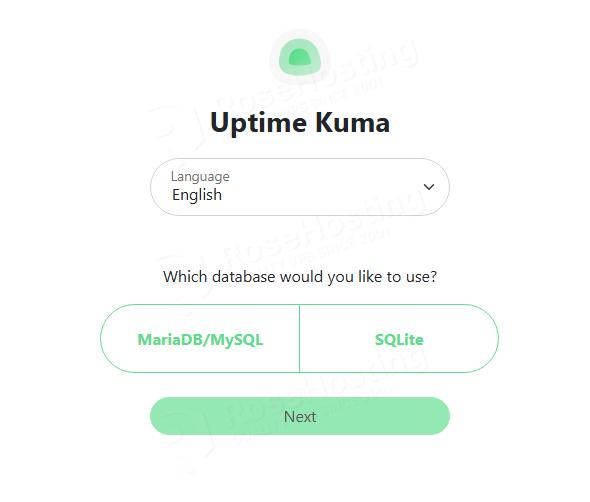
Click on MariaDB/MySQL, then continue
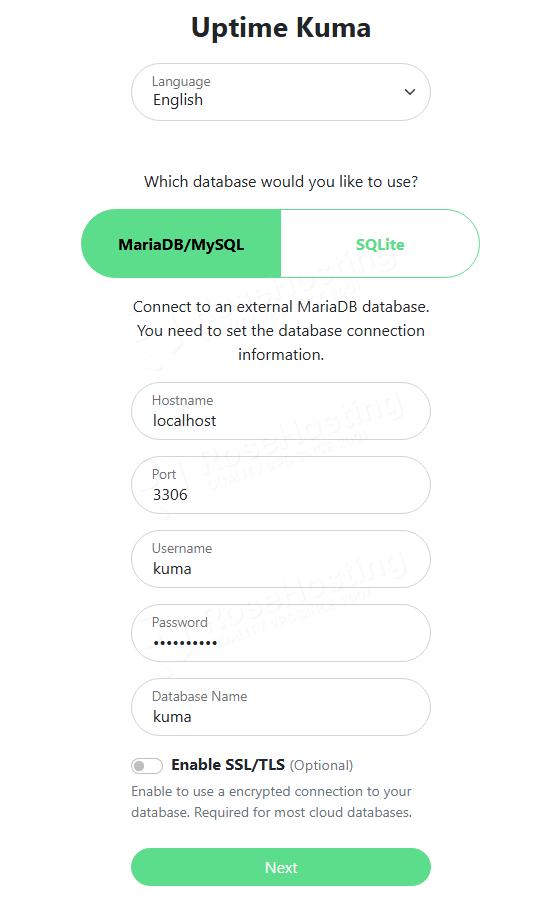
Fill in all, then click on the Next button to continue
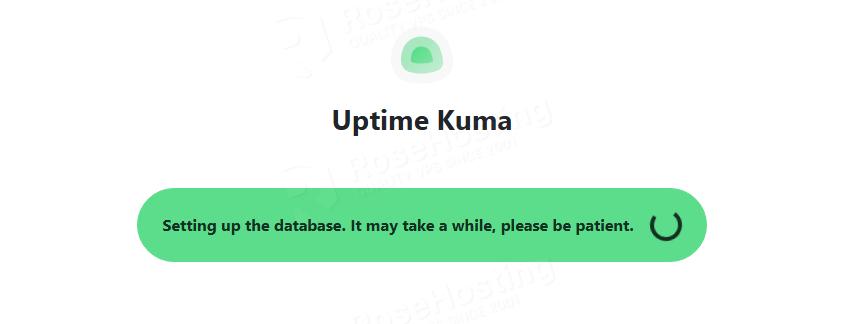
This will take some time to complete; we just need to wait.
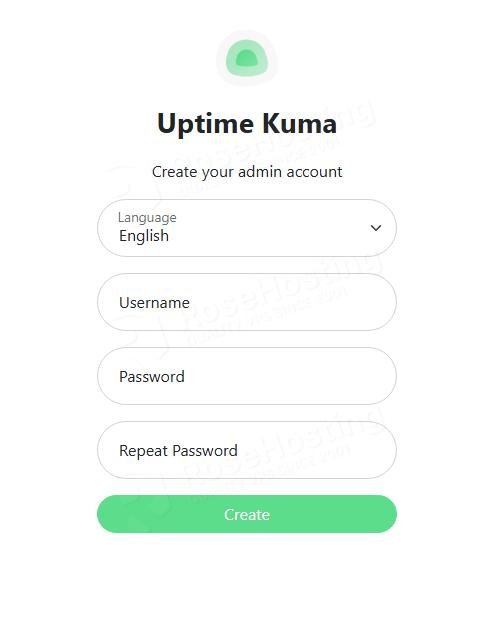
Once completed, you will need to create a new administrator user; make sure to use a strong password. Click Create to create the new user.
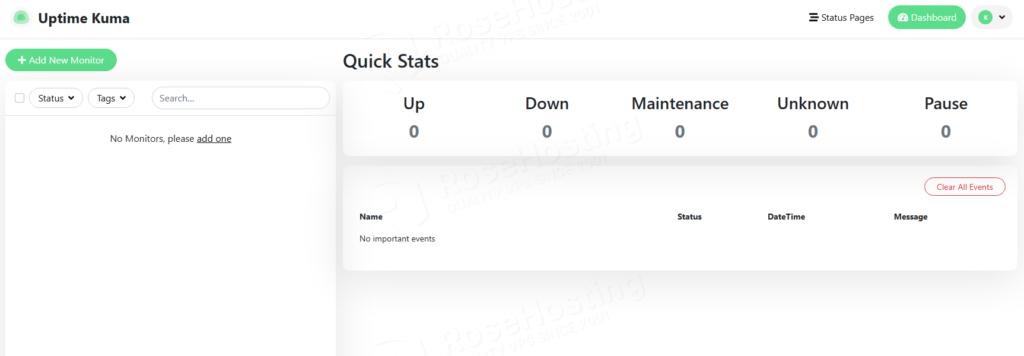
That’s it! You are taken to the Uptime Kuma dashboard, where you can start working.
Step 6. Create a Systemd File
In the previous step, you ran the Uptime Kuma app with the “npm start” command, and it will stop when you hit Ctrl + C on your keyboard. Now, to better manage the service, we will create a new systemd unit file in this step.
$ sudo nano /etc/systemd/system/kuma.serviceInsert the following into the file.
[Unit]
Description=Uptime Kuma - A self-hosted monitoring tool
After=network-online.target

[Service]
Type=simple
User=kuma
WorkingDirectory=/home/kuma/uptime-kuma
ExecStart=/usr/bin/node /home/kuma/uptime-kuma/server/server.js
Restart=on-failure
RestartSec=5
Environment=NODE_ENV=production

[Install]
WantedBy=multi-user.target
Save the file, then exit. We need to run daemon-reload and start the service now.
$ sudo systemctl daemon-reload
$ sudo systemctl enable --now kuma
That’s it! Uptime Kuma should be up and running now.
Step 7. Install and Configure Reverse Proxy
Your Uptime Kuma install has now been completed, and you should be able to access it at IP:3001. However, if you want to access your Uptime Kuma website using a domain name or subdomain name instead IP:PORT combination, you would need to configure a reverse proxy on your server. In this step, we will install and configure nginx.
First, install Nginx with the following command:
On Debian/Ubuntu
$ sudo apt install nginxOn AlmaLinux/CentOS/RockyLinux:
$ sudo dnf install nginxNext, let’s create an nginx server block or virtual host.
$ sudo nano /etc/nginx/conf.d/kuma.confInsert the following into the file:
server {

    listen 80;
    server_name    kuma.yourdomain.com;
    location / {
        proxy_pass         http://localhost:3001;
        proxy_http_version 1.1;
        proxy_set_header   Upgrade $http_upgrade;
        proxy_set_header   Connection "upgrade";
        proxy_set_header   Host $host;
    }

    location ~ /.well-known {
       alias /var/www/html;
    }
}
Save the file by pressing CTRL + O, then press CTRL + X to exit the nano editor, then restart Nginx.
$ sudo systemctl restart nginxAt this point, you should be able to access Uptime Kuma.
Step 8. Install SSL Certificate
In this step, we will install certbot. Certbot is an ACME client for generating SSL certificates issued by Let’s Encrypt.
$ sudo apt install python3-certbot-nginxOnce installed, run this command to generate an SSL certificate. But make sure that your subdomain or domain name is already pointing to your server; otherwise, certbot will fail to generate the SSL certificate.
$ sudo certbot --nginx -d kuma.yourdomain.comThe command will return an output like this if everything is okay.
Saving debug log to /var/log/letsencrypt/letsencrypt.log
Enter email address or hit Enter to skip.
 (Enter 'c' to cancel): you@yourdomain.com

- - - - - - - - - - - - - - - - - - - - - - - - - - - - - - - - - - - - - - - -
Please read the Terms of Service at:
https://letsencrypt.org/documents/LE-SA-v1.8-July-06-2026.pdf
You must agree in order to register with the ACME server. Do you agree?
- - - - - - - - - - - - - - - - - - - - - - - - - - - - - - - - - - - - - - - -
(Y)es/(N)o: y

- - - - - - - - - - - - - - - - - - - - - - - - - - - - - - - - - - - - - - - -
Would you be willing, once your first certificate is successfully issued, to
share your email address with the Electronic Frontier Foundation, a founding
partner of the Let's Encrypt project and the non-profit organization that
develops Certbot? We'd like to send you email about our work encrypting the web,
EFF news, campaigns, and ways to support digital freedom.
- - - - - - - - - - - - - - - - - - - - - - - - - - - - - - - - - - - - - - - -
(Y)es/(N)o: n
Account registered.
Requesting a certificate for kuma.yourdomain.com

Successfully received certificate.
Certificate is saved at: /etc/letsencrypt/live/kuma.yourdomain.com/fullchain.pem
Key is saved at:         /etc/letsencrypt/live/kuma.yourdomain.com/privkey.pem
This certificate expires on 2026-10-19.
These files will be updated when the certificate renews.
Certbot has set up a scheduled task to automatically renew this certificate in the background.

Deploying certificate
Successfully deployed certificate for kuma.yourdomain.com to /etc/nginx/conf.d/kuma.conf
Congratulations! You have successfully enabled HTTPS on https://kuma.yourdomain.com

- - - - - - - - - - - - - - - - - - - - - - - - - - - - - - - - - - - - - - - -
If you like Certbot, please consider supporting our work by:
 * Donating to ISRG / Let's Encrypt:   https://letsencrypt.org/donate
 * Donating to EFF:                    https://eff.org/donate-le
- - - - - - - - - - - - - - - - - - - - - - - - - - - - - - - - - - - - - - - -
You’ve Installed Website and Service Monitoring on Linux VPS
Finally, you should be able to access your Kuma NGX installation at https://kuma.yourdomain.com. You can now start working on it and uploading your files.
Of course, you don’t have to install Uptime Kuma if you use one of our Managed VPS Hosting services, in which case you can simply ask our expert Linux administrators to set up Uptime Kuma for website and service monitoring for you for free. They are available 24×7 and will address your request immediately.
If you liked this post about how to install Uptime Kuma for website and service monitoring on Linux, please share it with your friends on the social networks using the share buttons below, or simply leave a comment in the comments section. Thanks.