NextCloud is an open-source cloud solution that allows you to store and share files online. Furthermore, this application provides free access and allows you to synchronize data even across different devices (mobile or computer). This web application gives you complete control over what data you store, where it’s stored, how it’s stored, who can access it, and how it’s deleted. NextCloud was released in early 2020 and competes with similar services like Google Drive and Dropbox. The software is free to install on Linux, and the client software can be installed on computers running Windows, OS X, or Linux. Mobile apps are also available for Android and iOS. In this tutorial, we will show you how to install NextCloud on Ubuntu 26.04.
Table of Contents
Prerequisites
- An Ubuntu 26.04 server
- SSH root access or a regular system user with sudo privileges
Conventions
# – given commands should be executed with root privileges either directly as a root user or by use of sudo command
$ – given commands should be executed as a regular user
Step 1. Log in to Server
Let’s log in to your Ubuntu 26.04 VPS through SSH as a root user or as a regular user with sudo privileges.
ssh root@IP_Address -p Port_numberIf you cannot log in as root, remember to substitute “root” with a user that has sudo privileges. Additionally, change “IP_Address” and “Port_Number” to ensure they match your server’s IP address and SSH port.
You can check whether you have the correct Ubuntu version installed on your server with the following command:
# lsb_release -aYou should get this output:
No LSB modules are available.
Distributor ID: Ubuntu
Description:    Ubuntu Resolute Raccoon
Release:    26.04
Codename:   resolute
Step 2. Install PHP
Ubuntu 26.04 ships with PHP 8.5, and NextCloud version 33 supports this PHP version. For more information about the system requirements, we can check their documentation page at https://docs.nextcloud.com/server/latest/admin_manual/release_notes/upgrade_to_33.html and https://github.com/nextcloud/server/wiki/Releases-and-PHP-versions. So, let’s install PHP and its required extensions.
# apt install php8.5-{fpm,xml,intl,common,curl,mbstring,mysql,gd,imagick,zip} bzip2 unzipStep 3. Install and Configure Nginx
In this tutorial, we will install and use Nginx, not Apache. Run the following command to install it
# apt install nginx -yOn an Ubuntu machine, Nginx will run automatically upon installation. It is also configured to start automatically upon reboot. Now, let’s create an Nginx server block for the domain or subdomain name to host NextCloud on the server. For example, we will use yourdomain.com
# nano /etc/nginx/conf.d/nextcloud.conf Insert the following into that file.
upstream nextcloud {
    server unix:/var/run/php/php8.5-fpm.sock;
}

server {
    listen 80;
    server_name yourdomain.com;
    root /var/www/html/nextcloud;

    location = /robots.txt {
        allow all;
        log_not_found off;
        access_log off;
    }

    client_max_body_size 512M;
    fastcgi_buffers 64 4K;

    gzip on;
    gzip_vary on;
    gzip_comp_level 4;
    gzip_min_length 256;
    gzip_proxied expired no-cache no-store private no_last_modified no_etag auth;
    gzip_types application/atom+xml application/javascript application/json application/ld+json application/manifest+json application/rss+xml application/vnd.geo+json application/vnd.ms-fontobject application/x-font-ttf application/x-web-app-manifest+json application/xhtml+xml application/xml font/opentype image/bmp image/svg+xml image/x-icon text/cache-manifest text/css text/plain text/vcard text/vnd.rim.location.xloc text/vtt text/x-component text/x-cross-domain-policy;

    location / {
        rewrite ^ /index.php;
    }

    location ~ ^\/(?:build|tests|config|lib|3rdparty|templates|data)\/ {
        deny all;
    }
    location ~ ^\/(?:\.|autotest|occ|issue|indie|db_|console) {
        deny all;
    }

    location ~ ^\/(?:index|remote|public|cron|core\/ajax\/update|status|ocs\/v[12]|updater\/.+|oc[ms]-provider\/.+|.+\/richdocumentscode\/proxy)\.php(?:$|\/) {
        fastcgi_split_path_info ^(.+?\.php)(\/.*|)$;
        set $path_info $fastcgi_path_info;
        try_files $fastcgi_script_name =404;
        include fastcgi_params;
        fastcgi_param SCRIPT_FILENAME $document_root$fastcgi_script_name;
        fastcgi_param PATH_INFO $path_info;
        fastcgi_param modHeadersAvailable true;
        fastcgi_param front_controller_active true;
        fastcgi_pass nextcloud;
        fastcgi_intercept_errors on;
        fastcgi_request_buffering off;
    }

    location ~ ^\/(?:updater|oc[ms]-provider)(?:$|\/) {
        try_files $uri/ =404;
        index index.php;
    }

    location ~ \.(?:css|js|woff2?|svg|gif|map)$ {
        try_files $uri /index.php$request_uri;
        add_header Cache-Control "public, max-age=15778463";
        add_header Referrer-Policy "no-referrer" always;
        add_header X-Content-Type-Options "nosniff" always;
        add_header X-Download-Options "noopen" always;
        add_header X-Frame-Options "SAMEORIGIN" always;
        add_header X-Permitted-Cross-Domain-Policies "none" always;
        add_header X-Robots-Tag "none" always;
        add_header X-XSS-Protection "1; mode=block" always;

        access_log off;
    }

    location ~ \.(?:png|html|ttf|ico|jpg|jpeg|bcmap|mp4|webm)$ {
        try_files $uri /index.php$request_uri;
        access_log off;
    }
}
Save the file, then exit from the editor. To apply the changes, do not forget to restart nginx.
# systemctl restart nginxStep 4. Install MySQL Server
For the database engine, NextCloud supports MySQL 8.0 or 8.4, MariaDB 10.6 or 10.11, and 11.4, PostgreSQL, Oracle, and SQLite. In this step, we are going to install MariaDB server from the default Ubuntu 26.04 repository. To install the MySQL server, execute the command below:
# apt install mysql-server MySQL should be up and running now.
Step 5. Create a Database
On Ubuntu 26.04, MySQL will start automatically upon installation. Since the database server is up and running now, we can log in to the MySQL shell and create a database for our NextCloud website.
# mysql Once logged in to the MySQL shell, we can run the following commands.
mysql> CREATE DATABASE nextcloud;
mysql> CREATE USER 'nextcloud'@'localhost' IDENTIFIED BY 'm0d1fyth15';
mysql> GRANT ALL PRIVILEGES ON nextcloud.* TO 'nextcloud'@'localhost';
mysql> FLUSH PRIVILEGES;
mysql> \q
Remember to replace m0d1fyth15 with a stronger password.
Step 6. Download NextCloud
In this step, we are going to download the NextCloud installation archive file. You can check their releases at https://download.nextcloud.com/server/releases/ to choose and download a specific version.
We will download the latest available version. Let’s run this command:
# cd /tmp
# wget https://download.nextcloud.com/server/releases/latest.zip -O latest.zip
# unzip latest.zip -d /var/www/html
# mkdir /var/www/html/nextcloud/data
The commands above will download and then extract the compressed file into the directory /var/www/html/nextcloud. Now, let’s give the correct permissions.
# chown -R www-data: /var/www/html/nextcloudStep 7. Install NextCloud
We can initiate and complete the installation by visiting http://yourdomain.com in any web browser. Make sure to navigate to the domain you configured earlier when setting up the nginx virtual host.
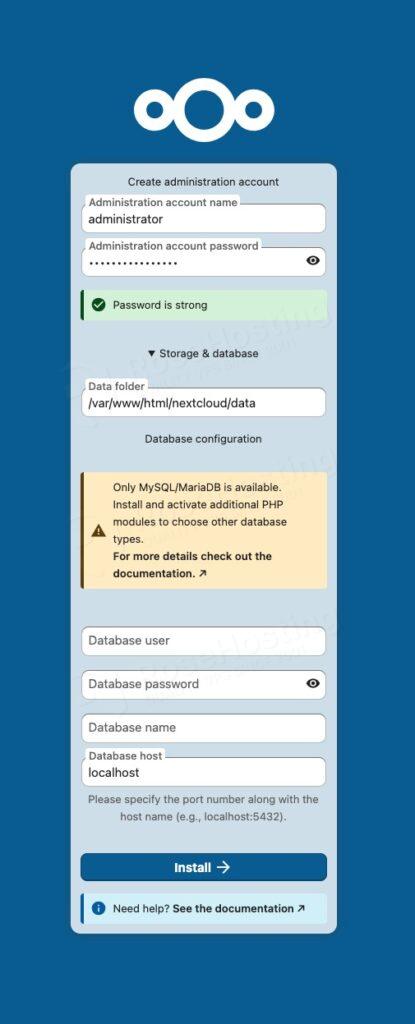
Fill the forms with the administrative user and password you want to create, and also fill in the database credentials we created earlier in this post, then click on the Install button.
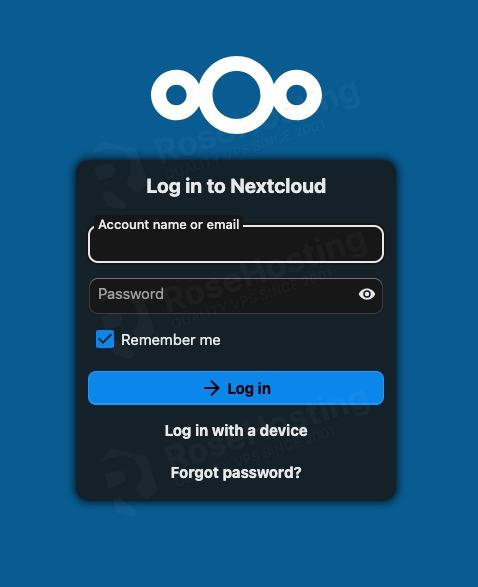
Log in with your administrative account you created in the previous step. Now, you can customize and start working on your freshly installed NextCloud website.
Wrapping It Up
That’s it! You have successfully installed NextCloud on Ubuntu 26.04.
Of course, you don’t have to install NextCloud on Ubuntu 26.04 if you use one of our Managed NextCloud Hosting services, in which case you can simply ask our expert Linux administrators to install NextCloud on Ubuntu 26.04 for you for free. They are available 24×7 and will address your request immediately. Managing NextCloud websites is not just about the installation; we can help you optimize your NextCloud installation if you have an active service with us.
If you liked this post about how to install NextCloud on Ubuntu 26.04, please share it with your friends or leave a comment down below.