Solomon Hykes introduced Docker at PyCon 2013, showcasing its capabilities for packaging and running applications in containers. These containers offer a high level of isolation and security, enabling the concurrent execution of multiple containers on a designated host. Since its official launch in 2014, Docker has gained significant popularity among developers worldwide. Docker is a runtime engine running on your computer. It’s a daemon that manages starting and stopping containers on that single computer. So, Docker is about managing work within a single machine. When people talk about ‘Docker’, they usually refer to an individual machine. In this article, we will show you how to remove Docker images on Ubuntu 26.04.
Table of Contents
Prerequisites
- An Ubuntu 26.04 VPS
- SSH access with sudo privileges, or root access.
Conventions
# – given commands should be executed with root privileges either directly as a root user or by use of sudo command
$ – given commands should be executed as a regular user
Log in to your server via SSH
First of all, let us log in to our Ubuntu 26.04 VPS via SSH as the root user:
ssh root@IP_Address -p Port_numberYou will need to replace ‘IP_Address’ and ‘Port_number’ with your server’s respective IP address and SSH port number. Additionally, replace ‘root’ with the username of the system user with sudo privileges.

Now, let’s check whether you have the proper Ubuntu version installed on your server with the following command:
$ lsb_release -aThe command should return an output like this:
No LSB modules are available.
Distributor ID: Ubuntu
Description:  Ubuntu 26.04 LTS
Release:  26.04
Codename: resolute
What is Docker
Docker is a container manager. Containers don’t have an operating system. When a container is created, it uses the operating system of the container manager (in Docker, Linux). The container manager can isolate each container, so you don’t need to worry about changing the OS settings in each container; these changes won’t affect the container manager’s OS.
Furthermore, using containers reduces the size of the package/container file because there’s no OS inside. Running and restarting containers is also faster because there’s no OS inside (no OS booting). This is why containers are so popular today, and one of the most popular container implementations is Docker.
What is a Docker Image?
A Docker image is a file, consisting of several layers, used to execute code within a Docker container. A Docker image is essentially built from instructions that produce a complete, executable version of an application that relies on the host OS kernel. When a Docker user runs an image, it can be one or more instances of that container.
What is a Docker Volume?
A Docker volume stores data generated and used by a Docker container. For example, storing node_modules in our NodeJS service container.
A small thing that is often forgotten when we use Docker is the accumulation of unused container images and volumes on our local computer, ranging in size from small to large. For example, when we first created a Docker Compose file, we copied and pasted all the scripts.
How to Delete Docker Images
Docker Image Example – Here’s an unused image. Open the terminal and type:
# docker image ls
A list of images on your local system, along with their sizes, will appear.

Docker Volume Example — Here’s an image of a Docker volume on your local system. Open the terminal and type:
# docker volume lsIn the image below, you can see the name of the encrypted volume, which is usually the default for Docker if you haven’t initialized a volume for the service you’re creating.
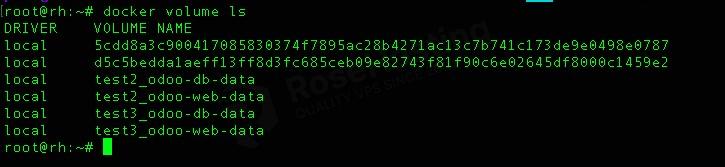
How to delete them? Here’s how to delete a Docker image one by one by typing the following command in our terminal: docker rmi. First, type docker image ls. After the list appears, find the image ID you want to delete. For example:
# docker rmi 43745a0ac9bdIf you see a message like this:
Error response from daemon; conflict: unable to delete 43745a0ac9bd (must be forced) - image is being used by stopped container lsd883413sfs4It means your container is using it, and it’s stopped. If you are sure that you no longer use the container, we can remove the stopped container first:
# docker rm <CONTAINER_ID>To see the container ID, we can run the command:
# docker ps -a
Then find the stopped container’s ID and delete it.
# docker rm b7ee699ce4f0The container has been deleted, so you can now delete the image.
# docker rmi 43745a0ac9bdThe command will return an output like this:
Untagged: odoo:9.0
Untagged: odoo@sha256:65f820a12396c53452116810fa1adbb7b65cd3e0bb54dad658748eb1e7f340ab
Deleted: sha256:43745a0ac9bdc8f18dabe8eeb787557c8b36c4423c32c93684656a454ebefae8
Deleted: sha256:dcde60c28dca71b0f68074eb6937fc9a8f5e6cf2317fe1b8377985ce238f2cd4
Deleted: sha256:2862b83bcacb842d5113fcfb9022c117be9e7c1cd7dbb17f441d799ec1fa648c
Deleted: sha256:b42917c6f8764c934170a8c472f8ecfb5c17f3943dbeba92de96b198ea46d015
Deleted: sha256:435575d5d588a1ae8edd59a34bd5bcacc8f42413f50d709aa2025ec03d60c8da
Deleted: sha256:8c59bd277c30d3832dd3dbbed241a3ecd8db54205531b7b32434401edaf788d4
Deleted: sha256:5c1b892dd0a316d6cd6d3e9562b756123ee40b18d10d9a332b780d68ad79c9cc
Deleted: sha256:8c466bf4ca6ffdda8b7717b1cd6fe31109529ee64e626a003a224fb8bd2bc469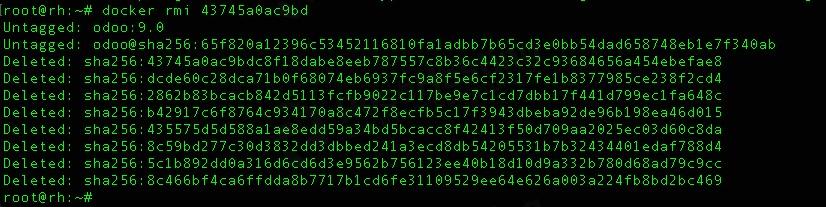
That’s it, you have successfully deleted a Docker image.
Here’s how to delete Docker volumes one by one. This is almost identical to the first Docker image. In the terminal, type the command docker volume ls, then type the following command: docker volume rm
# docker volume rm 70e1f54b753feb6706f2d3db0150fa2f62066583ea609dfa105834687206435c
The final method is to delete both simultaneously, but it’s a bit risky because it will erase all installation configurations. Docker on our local system.
# docker system prune -a
The method above will not delete active images and volumes, only inactive ones.
In Conclusion
That’s it! You have learned how to remove Docker Images on Ubuntu 26.04.
If you are one of our web hosting customers and use our managed Ubuntu Hosting, you don’t need to follow this tutorial to remove Docker images on Ubuntu 26.04 yourself; our Linux admins will handle it for you. They are available 24×7 and will take care of your request immediately, and all you need to do is submit a ticket.
If you liked this post, please share it with your friends or leave a comment below.