
If you’re looking for a Self-Hosted PaaS on Debian 13, Dokploy may be perfect for your case. Dokploy is an open-source deployment platform that simplifies the management and distribution of self-hosted applications. Simply put, Dokploy helps developers manage application build, configuration, and deployment directly from a single, centralized dashboard. Dokploy is often referred to as a self-hosted PaaS (Platform as a Service) solution. This means that instead of relying on third-party services managed by vendors, users have full control over their own server infrastructure.
Unlike traditional PaaS like Heroku or Vercel, Dokploy doesn’t lock users into a specific ecosystem (no vendor lock-in). Developers are free to determine server specifications, network configurations, and scaling strategies according to project needs. In this article, we will show you how to set up Dokploy on Debian 13.
Table of Contents
Prerequisites for Installing a Self-Hosted PaaS on Debian 13
- A Debian 13 server with at least 2GB of RAM
- SSH root access or a regular system user with sudo privileges
Conventions
# – given commands should be executed with root privileges either directly as a root user or by use of sudo command
$ – given commands should be executed as a regular user
Step 1. Log in to the Server and Update the System
First of all, we need to log in to our Debian 13 VPS through SSH:

ssh root@IP_Address -p Port_numberReplace “root” with a user that has sudo privileges or root if necessary. Additionally, replace “IP_Address” and “Port_Number” with your server’s respective IP address and SSH port number. Next, let’s make sure that we’re on Debian 13. You can do that like this:
# lsb_release -aThe command should return an output similar to this:
No LSB modules are available.
Distributor ID: Debian
Description:  Debian GNU/Linux 13 (trixie)
Release:  13
Codename: trixie
Step 2. Set Up Dokploy
Before we set up our self-hosted PaaS on Debian 13 we need to understand that Dokploy requires a fresh server with no web server running. Dokploy requires port 80, 443, and 3000 to run. Now, simply run the command below to download and execute the installation script.
# export DOKPLOY_VERSION=latest && curl -sSL https://dokploy.com/install.sh | bashThe command above will install everything, including Docker. So, it will take some time for the installation to complete. When it completes, you will see a message similar to this on your screen:
docker-ce set on hold.
docker-ce-cli set on hold.
docker-ce-rootless-extras set on hold.
Using advertise address: 192.168.1.157
Swarm initialized: current node (smxiufpv0l2wqa2ryhga3ttsw) is now a manager.

To add a worker to this swarm, run the following command:

    docker swarm join --token SWMTKN-1-2eb1n67wh5xuv5m8ftwv5wjglutawloz9kdjr93aa7b19zj48q-12hs2dfv7w1thald8z3uey08x 192.168.1.157:2377

To add a manager to this swarm, run 'docker swarm join-token manager' and follow the instructions.
Swarm initialized
qzeeiuiln039b3hp93v6eukn7
Network created
z3bovaekj4bmqemfdol84crzq
xmmit7rcshtbadzzf8z439v8p
Generated secure database credentials and auth secret (stored in Docker Secrets)
p3zihd8uhvj97bt7tw4nl15vb
overall progress: 1 out of 1 tasks
1/1: running   [==================================================>]
verify: Service p3zihd8uhvj97bt7tw4nl15vb converged
uttk0yrcpmqbzyvfrzb3y0z2w
overall progress: 1 out of 1 tasks
1/1: running   [==================================================>]
verify: Service uttk0yrcpmqbzyvfrzb3y0z2w converged
Unable to find image 'traefik:v3.6.7' locally
v3.6.7: Pulling from library/traefik
589002ba0eae: Pull complete
ef63511ea6cc: Pull complete
0738e5cb835e: Pull complete
3e6813f70c64: Pull complete
Digest: sha256:a9890c898f379c1905ee5b28342f6b408dc863f08db2dab20e46c267d1ff463a
Status: Downloaded newer image for traefik:v3.6.7
e0f0b52717bba29be895215df412fe0da509d0ded04ec3b197ec01a8be41da9b

Congratulations, Dokploy is installed!
Wait 15 seconds for the server to start
Please go to http://123.123.123.123:3000
If you are on the same local network, use http://192.168.1.157:3000
As you can see above, you should be able to access Dokploy at the URL provided in the message.
Step 3. Configure Dokploy
After successfully installing Dokploy in the previous step, it is time to configure it. Let’s open http://YOUR_SERVER_IP_ADDRESS:3000 now.
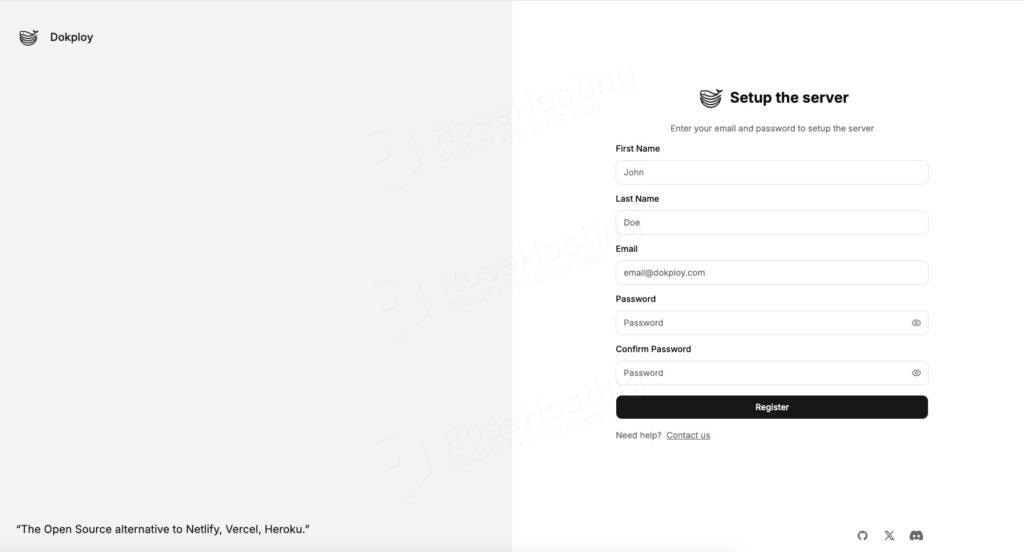
First, create a user with administrative privileges. Fill in all fields to register a new administrator user, then click Register.
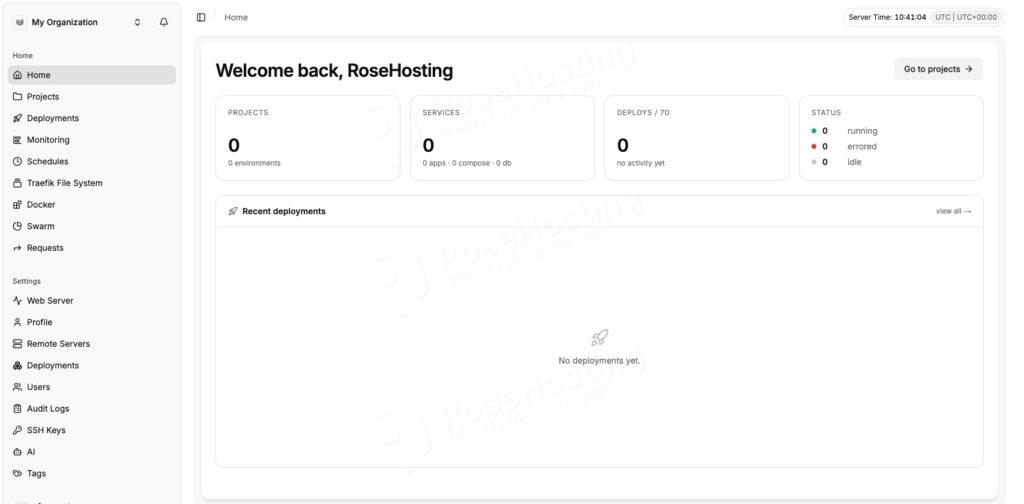
That’s it! You registered a new administrator user, and you will be redirected to the Dokploy dashboard.
Step 4. Secure Installation
Your Dokploy GUI is available at http://YOUR_SERVER_IP_ADDRESS:3000. This is acceptable for initial setup, but it would be better to secure it by providing a domain or subdomain and installing an SSL certificate on it. To configure Dokploy to run on a domain or subdomain, you should:
- Point your domain or subdomain’s DNS A record to your server’s IP address
- Configure Traefik for HTTPS
Dokploy uses Traefik as its reverse proxy engine, and it supports automatic SSL via Let’s Encrypt out of the box. In the Dokploy dashboard, do these:
- Navigate to Settings → Server
- Enter your domain (e.g., dokploy.yourdomain.com) in the server domain field
- Enter your email address for Let’s Encrypt certificate notifications
- Enable HTTPS — Traefik will automatically obtain and renew certificates
- Under the Certificate Provider dropdown menu, choose Let’s Encrypt
- Click on the Save button; Dokploy will be accessible at https://dokploy.yourdomain.com once done
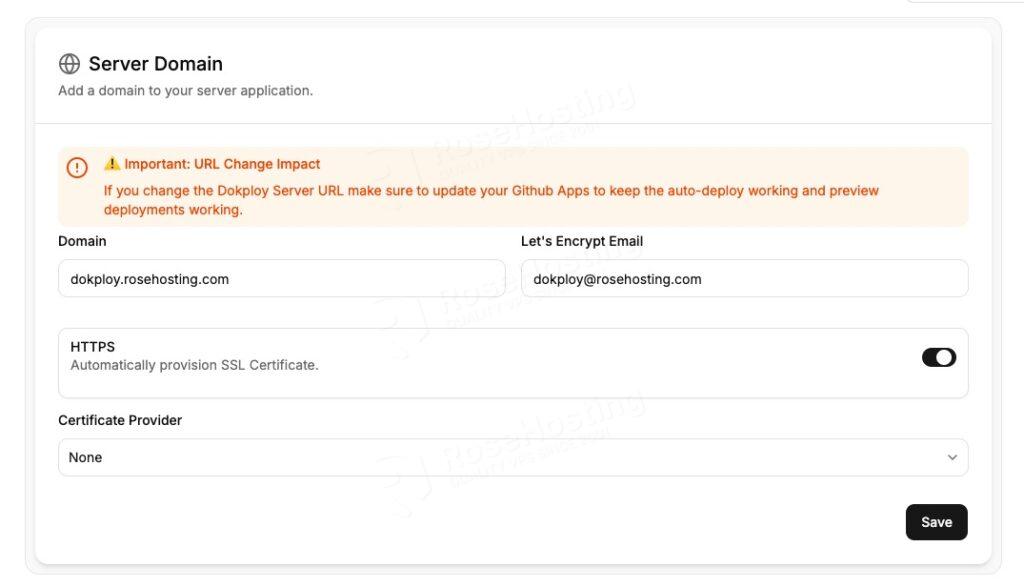
After HTTPS is configured, and there is no issue accessing Dokploy at ttps://dokploy.yourdomain.com, you can execute the command below to disable IP:PORT access and enhance security.
# docker service update --publish-rm "published=3000,target=3000,mode=host" dokployDokploy’s Pros and Cons
Here are some reasons why Dokploy is considered a modern deployment platform:
Pros
Supports Container-Based Architecture – Dokploy supports container technologies like Docker. This approach allows applications to run in a consistent environment, minimizing compatibility issues between development and production environments.
Deployment Process Automation – One of Dokploy’s main advantages is its ability to automate the deployment process. Once a repository is connected, users can immediately deploy applications whenever there is a code update, without needing to run manual commands on the server.
Integration with Git Repositories – Dokploy enables direct integration with repository platforms such as GitHub and GitLab. This makes it easier for developers to manage code and deploy it in a single integrated workflow.
Self-Hosted with Full Infrastructure Control – Unlike some PaaS services that are entirely managed by third parties, Dokploy is self-hosted. This means users have full control over the server, application configuration, and system security.
Centralized Management Dashboard – Dokploy provides a dashboard that makes it easy for users to monitor applications, set environment variables, and manage deployments from one location. This helps simplify the developer workflow when managing multiple applications simultaneously.
Cons
Maintenance is your responsibility — updates, security patches, monitoring are all handled by you
Updates can be breaking — although rare, still require caution
Server resource requirements — 2GB of RAM is the absolute minimum. 4GB is more realistic
Docker Swarm is deprecated — it will be removed in v5, so if you’re using Swarm, you’ll need to migrate.
In Conclusion
That’s it! You have learned how to set up Dokploy self-hosted PaaS on Debian 13. You can start customizing and deploying your project now.
Of course, you don’t have to install Dokploy Self-Hosted PaaS on Debian 13 if you have an active Linux VPS hosting service with us, in which case you can simply ask our expert Linux administrators to set up Dokploy on Debian 13 for you for free. They are available 24×7 and will address your request immediately. Managing Dokploy websites isn’t just about installation; if you have an active service with us, we can also help you optimize your Dokploy setup.
If you liked this post about how to set up Dokploy on Debian 13, please share it with your friends or leave a comment below.