
In this blog post, we will show you how to install aaPanel Control Panel on Ubuntu 26.04 OS. aaPanel is a free, open-source web hosting control panel that simplifies Linux server management through an intuitive web-based interface. Instead of relying on command-line tools, users can deploy and manage websites, databases, FTP accounts, email services, and web applications with just a few clicks. Key features include one-click installation of LAMP/LEMP stacks, SSL certificate management, file management, server monitoring, automated backups, scheduled tasks, firewall and security tools, multi-version PHP support, and an app store for installing software such as WordPress, Docker, Redis, and Node.js. Its lightweight design and ease of use make it popular with developers, system administrators, and hosting providers.
Installing aaPanel on Ubuntu 26.04 is a straightforward and takes about 10 minutes. Let’s get started!
Table of Contents
Prerequisites
- A server running Ubuntu 26.04 or any Linux OS
- User privileges: root or non-root user with sudo privileges
- A valid domain name with a pointed A record to the server IP address
Step 1. Update the system
Before we start installing aaPanel, we need to update the system packages to their latest available versions. To do that, execute the following commands:

apt update -y && apt upgrade -y
Step 2. Download and Install aaPanel script
The following command downloads the official aaPanel installation script from the aaPanel website and executes it to install and configure aaPanel on the server automatically
URL=https://www.aapanel.com/script/install_7.0_en.sh && if [ -f /usr/bin/curl ];then curl -ksSO "$URL" ;else wget --no-check-certificate -O install_7.0_en.sh "$URL";fi;bash install_7.0_en.sh aapanel
Once the installation starts, it will ask you if you want to install aaPanel in the /www directory. Type y to confirm and proceed with the installation.
+----------------------------------------------------------------------
| aaPanel FOR CentOS/Ubuntu/Debian
+----------------------------------------------------------------------
| Copyright © 2015-2099 BT-SOFT(https://www.aapanel.com) All rights reserved.
+----------------------------------------------------------------------
| The WebPanel URL will be https://SERVER_IP:25654 when installed.
+----------------------------------------------------------------------

Do you want to install aaPanel to the /www directory now?(y/n): y
After successful installation, you should receive the following output:
Congratulations! Installed successfully!
==================================================================
aaPanel Internet IPv4 Address: https://192.168.0.3:25654/835ff1a6
aaPanel Internal Address: https://192.168.0.3:25654/835ff1a6
username: tief0fly
password: 5452f752
Warning:
If you cannot access the panel,
release the following port (25654|888|80|443|20|21) in the security group
==================================================================
Time consumed: 5 Minute!
Step 3. Access aaPanel GUI
To access aaPanel, use the given URL after the installation and use the provided credentials above:
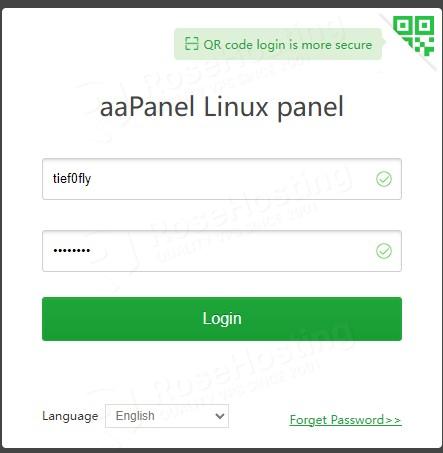
Once logged in, if everything is OK, you will see the following window:
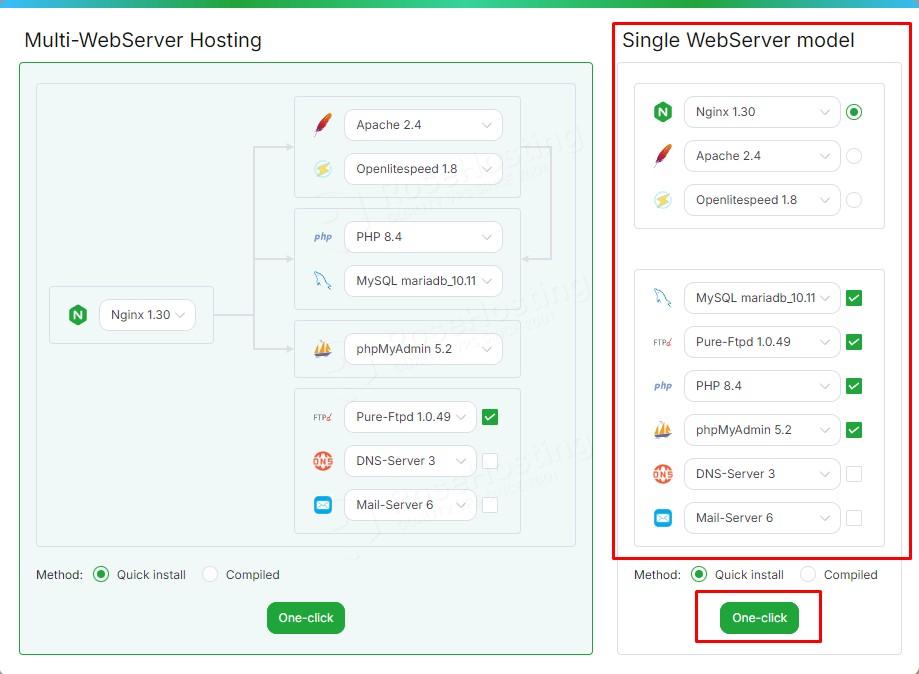
Close the window above and focus on the next screen, where you will choose whether to use “Multi-WebServer Hosting” or “Single WebServer model”. We will choose the Single Web Server:
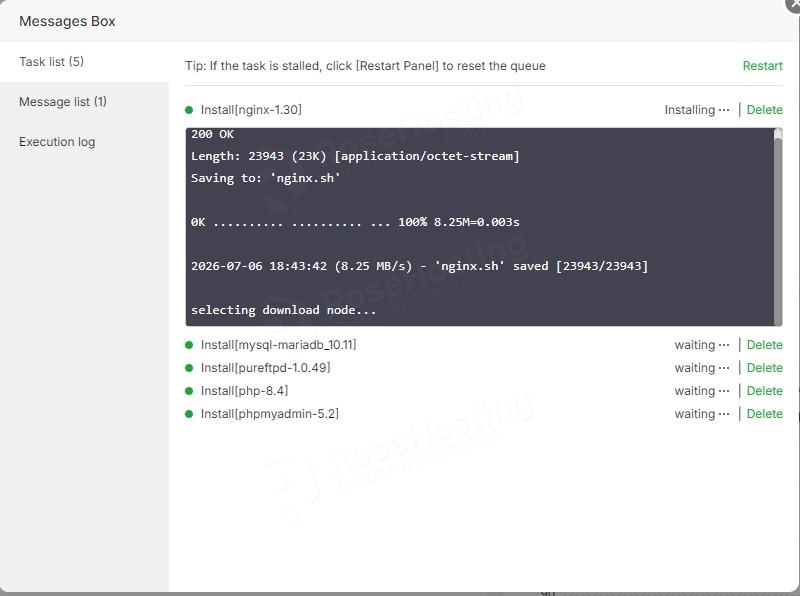
The installation process will start:
You can close the pop-up window, and you will see all options that aaPanel offers:
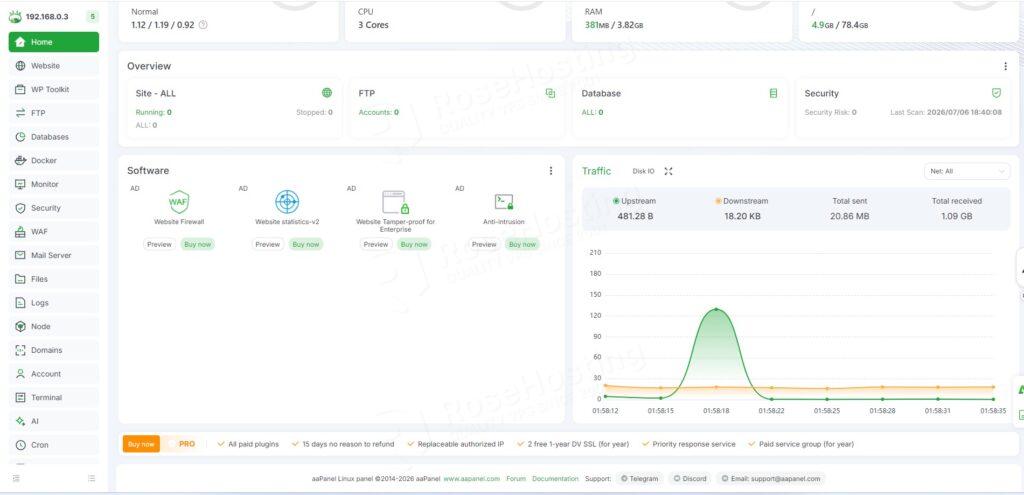
What does aaPanel provide?
aaPanel provides a comprehensive set of server and website management tools through its left-side navigation menu, allowing users to administer hosting environments from a single dashboard.
The Dashboard offers an overview of server health, including CPU, memory, disk usage, network activity, and system status. The Website section enables users to create and manage websites, configure domains, set up SSL certificates, manage redirects, and control web server settings.
The FTP menu allows you to create and manage FTP accounts for secure file transfers, while Databases provides tools for creating, managing, and accessing MySQL or MariaDB databases. The Files section includes a web-based file manager for uploading, editing, organizing, and managing server files directly from the browser.
Under Security, users can configure firewall rules, IP access controls, SSL settings, and other security-related features to help protect websites and server resources. The Terminal feature offers browser-based command-line access to the server, enabling advanced administration without requiring a separate SSH client.
The App Store allows one-click installation of popular software and services, including WordPress, Docker, Redis, Node.js, and additional server components. The Cron section helps automate repetitive tasks, such as backups, script execution, and maintenance jobs, through scheduled jobs.
Additional menu items may include Monitor for performance tracking, Logs for reviewing system and application activity, Backup tools for data protection, Mail Server management for hosting email services, and Settings for configuring panel preferences, notifications, and server-wide options.
Together, these menu sections provide a centralized platform for efficiently managing websites, applications, databases, security, monitoring, and server operations.
You’ve Managed to Install aaPanel Control Panel on Ubuntu 26.04
Choosing aaPanel is an excellent option for anyone looking to simplify Linux server management without sacrificing powerful functionality. Its intuitive web-based interface makes routine administration tasks accessible to beginners, while still offering the flexibility and advanced tools that experienced system administrators and developers expect. With support for website hosting, databases, file management, security, backups, monitoring, scheduled tasks, and one-click application installation, aaPanel provides everything needed to manage a modern web server from a single platform.
Its lightweight design, broad software compatibility, and active development make it suitable for personal projects, business websites, VPS hosting, and production environments alike. By reducing the complexity of server administration and automating many common tasks, aaPanel helps save time, improve efficiency, and minimize configuration errors. Whether you are hosting a single website or managing multiple applications, aaPanel offers a reliable, user-friendly, and feature-rich solution that makes server management faster, easier, and more efficient.
Congratulations! You successfully installed aaPanel on Ubuntu 26.04 OS.
Of course, you do not have to install it yourself if you have difficulty and are not familiar with Linux. All you have to do is sign up for one of our control panel hosting plans and submit a support ticket. Our admins are available 24/7 and will help you with any aspect of installing aaPanel.
If you liked this post on installing aaPanel on Ubuntu 26.04, please share it with your friends or leave a comment below.